The word and its meanings
As the card showed them: meanings, part of speech, level and pronunciation, all editable in your notebook.
 Lexpad
Learning a language with YouTube? With the free Lexpad extension, point at a subtitle and the video waits for you. Click a word, or drag across a few, and its meaning opens on the video. Add it, and the subtitle line becomes its example, with a link back to that moment in the video.


Updated . Checked against the app on 22 October 2026.
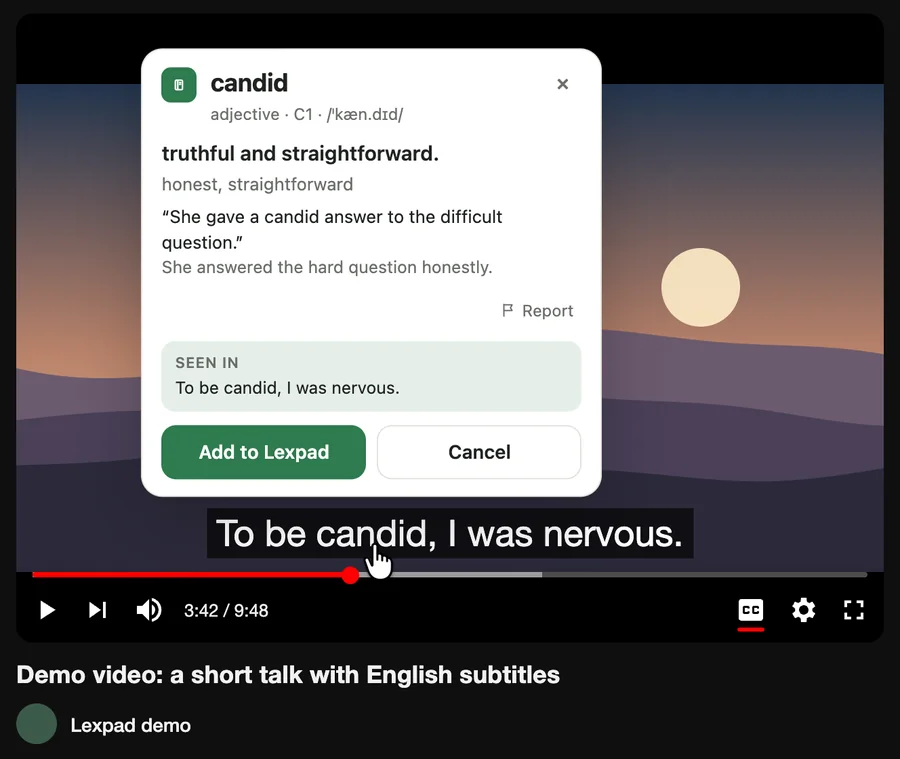
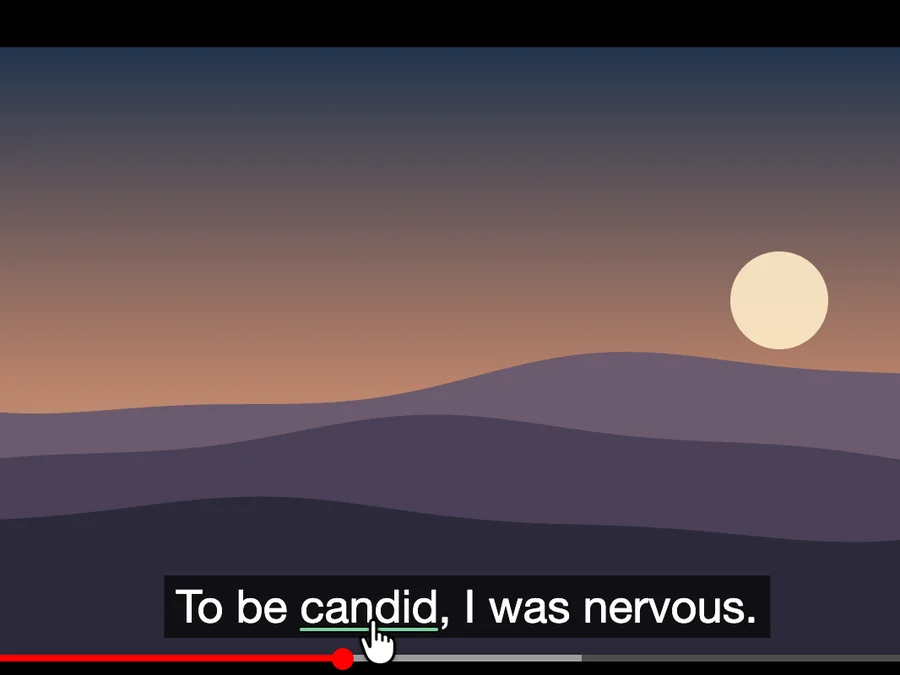
Point. The video pauses and the word under the pointer is underlined.
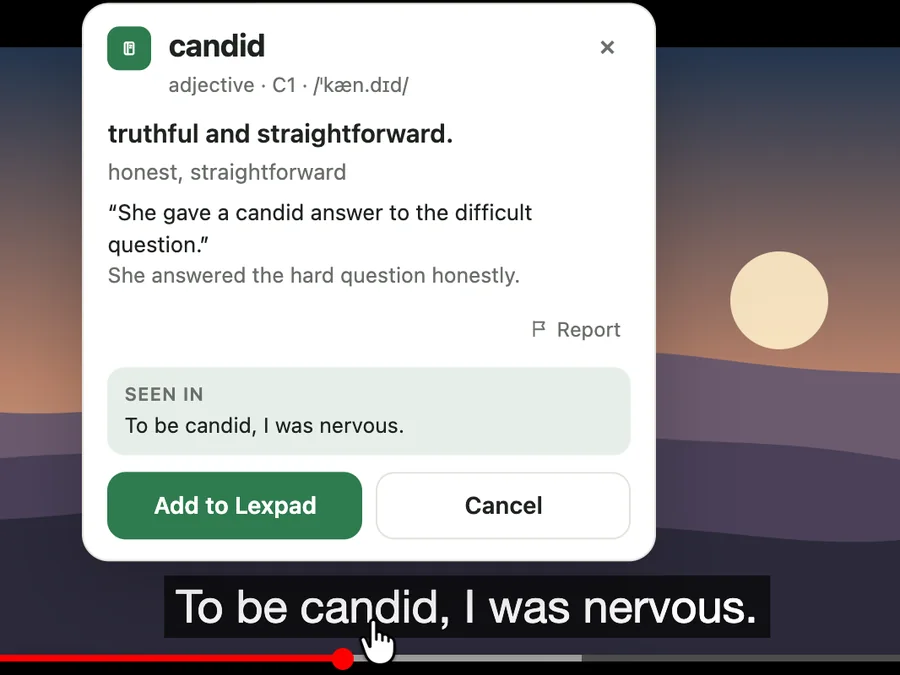
Click. The card opens right above the word, with the line as “Seen in”.
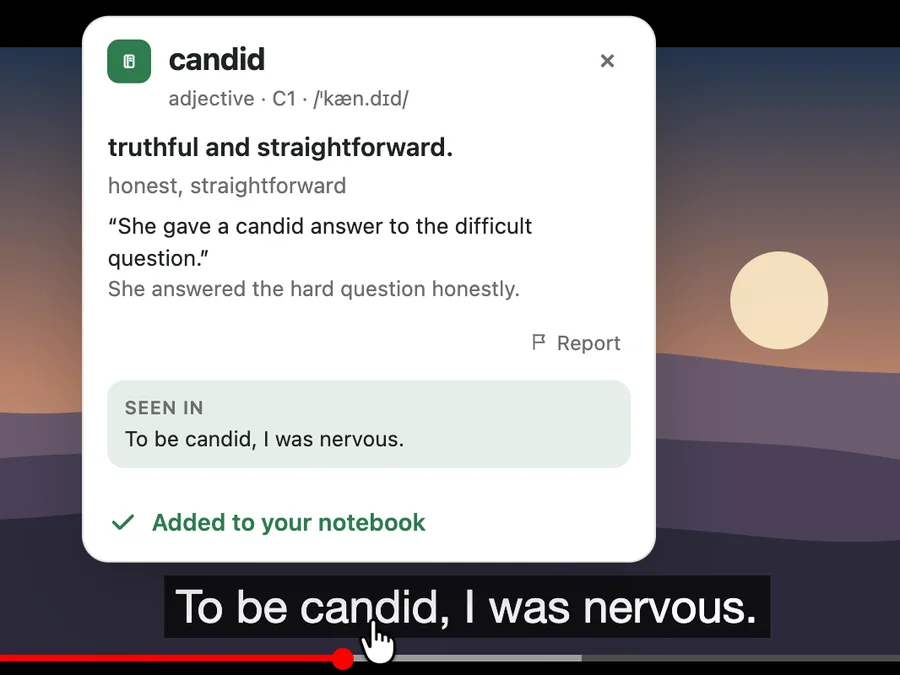
Add. Added to your notebook. Close the card and the video plays on.
It works in YouTube’s normal view, theater mode, full screen and the mini player. YouTube’s own keys (space, K, J, L, F and the arrows) and a click on the video work as before.
Everything goes into your own Lexpad notebook, where the word comes back for practice on a schedule.
As the card showed them: meanings, part of speech, level and pronunciation, all editable in your notebook.
The whole line becomes the word’s example. Speaker marks such as “>>” and labels such as “[Music]” are left out.
A private note: “Seen on” the video’s title, the time, and a link that starts two seconds before you clicked, so you hear the line again.
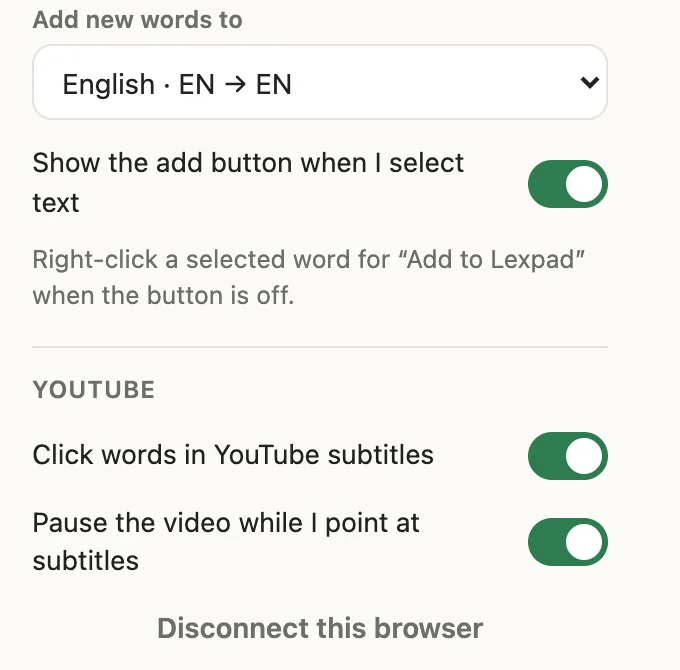
Two switches in the extension menu, both on at first: Click words in YouTube subtitles and Pause the video while I point at subtitles. Turn off only the pause and the video keeps playing while you point; a click still opens the card. Turn off the first and YouTube’s subtitles behave exactly as before. Both apply at once, without reloading the video.
A video is a good place to meet words: you hear how they sound and see when people use them. The hard part is keeping them. A few habits help:
Why the sentence and the spacing matter: How to memorize vocabulary. Reading too? Save new words while reading online.
The extension is free. Each meaning it writes uses the same AI allowance as the app: 25 AI cards a day (400 a month) on Free, 150 AI cards a day (2,000 a month) on Pro. Both the daily and the monthly number apply: the daily one comes back after midnight UTC, the monthly one on the 1st (UTC). Every new account gets Pro free for 14 days, no card needed. Pricing.
Good to know
Yes. The extension is free on every plan. The meaning on each card uses your daily AI allowance (25 AI cards a day (400 a month) on Free). You need a free Lexpad account to save words.
Yes. The card opens inside the player in normal view, theater mode, full screen and the mini player.
It does nothing until you point at a subtitle. In our test on a 111-minute lecture with subtitles, the extension used about 8 to 15 milliseconds of processor time per minute of watching.
No. It reads a subtitle only while your pointer is on it, and keeps no record of what you watch. The word and its line are sent only when you click a word, and the video’s address is saved only with a word you add.
Subtitles in any language, written by the creator or auto-generated, including right-to-left Persian and Arabic, and Chinese and Japanese (drag across the characters). The card is written in your notebook’s languages.
All three, on a computer: the Chrome Web Store (also for Brave and Opera), Microsoft Edge Add-ons and Firefox Add-ons. Safari is not supported.
Yes. In the extension menu, turn off Pause the video while I point at subtitles. A click still opens the card.
No. It works on youtube.com only. On any other page you can still select a word and add it with the extension’s usual + button.
Lexpad
Add the free extension, turn on subtitles, and click the next word you want to keep.