
ChatGPT and Claude

Your notebook,
inside your chat.

Lexpad connects to ChatGPT and Claude through MCP, the open standard assistants use to work with other apps. Once connected, ask the assistant to save a word, find any word you have, or quiz you, in any language you chat in. Your answers count as practice.

Checked against the app on 3 October 2026.

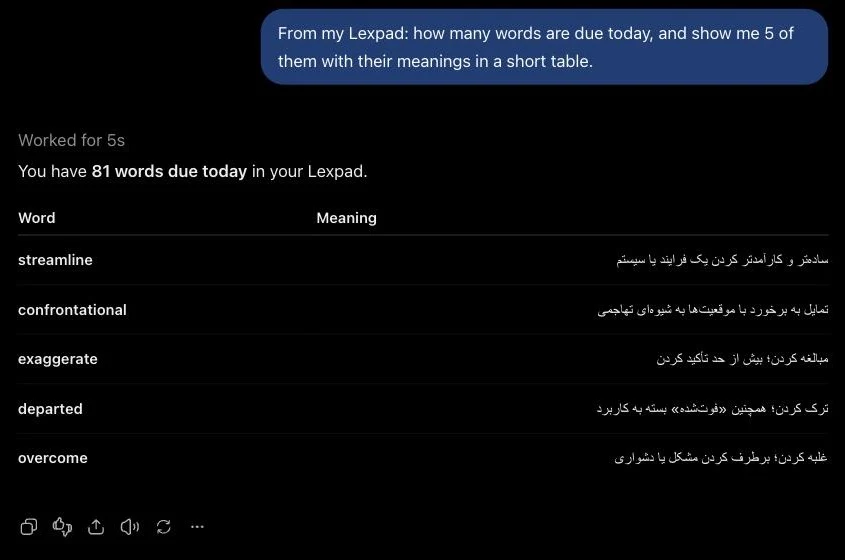
ChatGPT answering a question about Lexpad: You have 81 words due today, with a table of five words and their Persian meanings
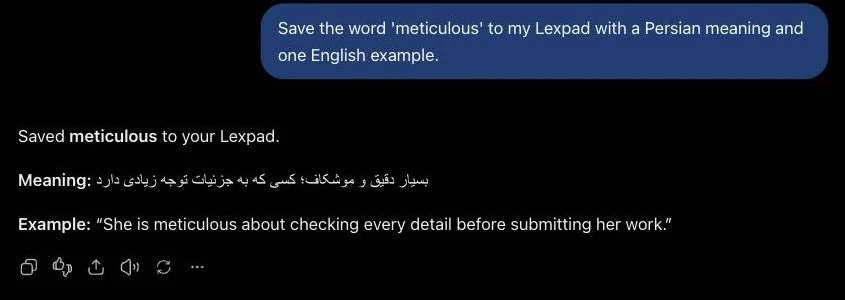
ChatGPT confirming “Saved meticulous to your Lexpad” with a Persian meaning and an English example
Works with
ChatGPT, Claude, Claude Code, other MCP apps
Server
api.lexpad.app/mcp
Sign-in
OAuth on a Lexpad page; no password shared
Plan
Free on every plan

What you can ask

Try saying

Things to say once Lexpad is connected, grouped by what they do. Each card shows what happens and which Lexpad tool the assistant uses. Write them in any language; the Persian ones work as they are.

Save words Changes

  • “Save the word ‘meticulous’ to my Lexpad with a Persian meaning and one English example.”

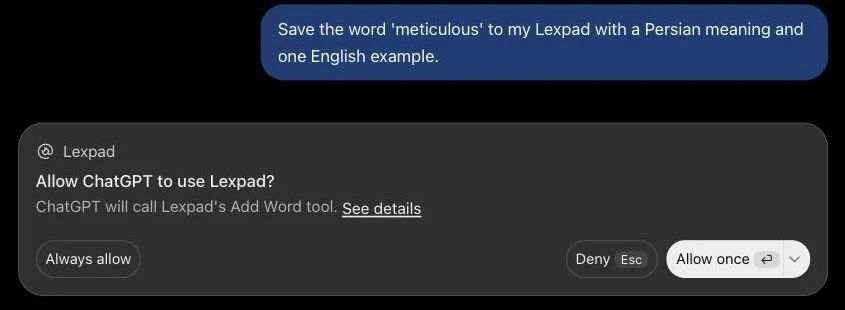
    The assistant writes the meaning and the example and saves the word. ChatGPT first asks you to allow the Add Word tool.

    add_word

  • “Save ubiquitous to my Lexpad, with an example about phones.”

    Saved, marked as added by an assistant. A word you already have moves to the top instead, as in the app.

    add_word

  • “From the article I pasted, save “mitigate” and “scrutiny” with the sentences they were in.”

    Only the two words you named are saved, each with its sentence as an example. Lexpad’s tools tell assistants to save only the words you ask for.

    add_word

  • کلمهٔ resilient را با معنی فارسی و یک مثال انگلیسی در لکس‌پد ذخیره کن.

    Saves resilient with a Persian meaning and an English example, written by the assistant.

    add_word

Find and filter Reads

  • “From my Lexpad: how many words are due today, and show me 5 of them with their meanings in a short table.”

    The count of words due today and a table of five, as in the screenshot below.

    get_due_words

  • “Show me all my starred words.”

    It pages through the whole notebook, however large, filtered to starred words.

    list_words

  • “My B2 words from September.”

    Filters by level and by the date you added them.

    list_words

  • “Which words am I struggling with?”

    The words stuck in box 1.

    list_words

  • “Every word about travel.”

    Filters by topic.

    list_words

  • “Tell me everything about propel.”

    All its meanings and examples, collocations, its box and when it is next due.

    get_word

  • “What did I add this week?”

    Your most recent words, newest first.

    get_recent_words

  • “How is my notebook doing?”

    Counts of due, new, mastered and struggling words, and your streak.

    notebook_stats

  • کلمه‌هایی که امروز باید مرور کنم را نشانم بده.

    The words due today, with their meanings.

    get_due_words

Practise Counts as practice

  • “Quiz me on the words due today, one at a time.”

    It asks, you answer, and each answer is recorded: words move through the Leitner boxes and your streak counts, as in a session in the app.

    get_due_wordsrecord_answer

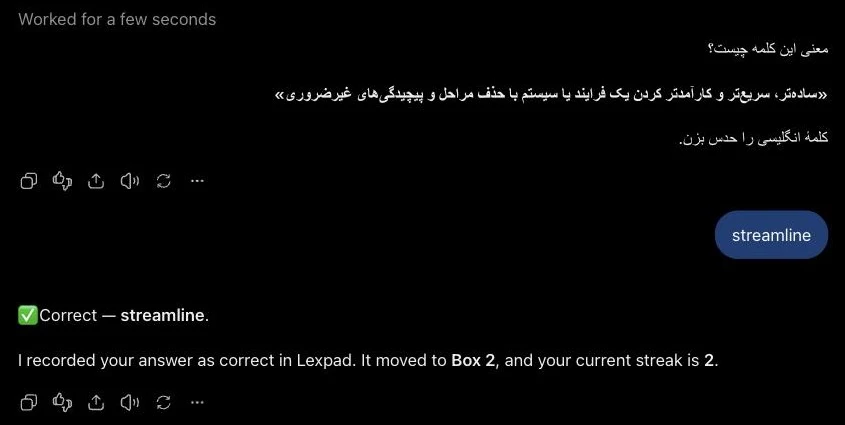
  • از کلمه‌های امروزم ازم امتحان بگیر؛ معنی فارسی را بگو تا من کلمهٔ انگلیسی را حدس بزنم.

    A quiz in Persian, as in the screenshot below: “Correct — streamline … It moved to Box 2, and your current streak is 2.”

    get_due_wordsrecord_answer

  • “Give me a multiple-choice quiz on my struggling words.”

    The assistant writes the questions; your answers are recorded for each word.

    list_wordsrecord_answer

  • “Use my newest words in a short story, then test me on them.”

    Reading first, then a check whose answers count.

    get_recent_wordsrecord_answer

Edit and organise Changes

  • “Add the “to push forward” meaning to propel.”

    A new meaning, with examples if you ask for them.

    add_meaning

  • “Change the example of its second meaning.”

    Edits a meaning or its examples.

    update_meaning

  • “Make the vehicle meaning of suspension the main one.”

    Reorders the meanings. The first meaning is the one practice asks about.

    reorder_meanings

  • “Fix the spelling of recieve.”

    Renames the word. If you already have the corrected word, it is refused rather than duplicated.

    update_word

  • “Set its level to B2, its topic to Work, and add a note: “heard it in a podcast”.”

    Edits a word’s details. Your practice progress is never touched.

    update_word

  • “Remove the third meaning of run.”

    Removes one meaning. ChatGPT and Claude ask you before they remove anything.

    remove_meaning

Star, retire, delete Changes

  • “Star ubiquitous.”

    Starred, as in the app; it joins the Starred deck.

    set_starred

  • “Retire hive, I know it now.”

    Retired words leave every practice deck.

    set_retired

  • “Bring hive back.”

    Back in practice, where it was.

    set_retired

  • “Delete thunderstorm.”

    Deleted from every device. Deleting is a separate permission you approve when you connect, and the assistant asks you first.

    delete_word

What it looks like

Real screenshots from ChatGPT, unedited, taken on 3 October 2026, and the matching row in Lexpad’s Settings.

Set up

How to connect

The address is the same in every app. Connecting takes a few taps, and you approve it on a Lexpad page.

Easiest: start from inside Lexpad

  1. In Lexpad, open Settings⁠, then Connected apps⁠, and choose Connect ChatGPT or Claude⁠.
  2. Pick ChatGPT⁠, Claude or Claude Code in the switch at the top.
  3. Copy the server address with its Copy button (for Claude Code, the whole claude mcp add command), and follow the numbered steps.
  4. Tap Open ChatGPT or Open Claude to go straight there.

When you come back to Lexpad, the Connected apps list updates by itself. On the web and in Android 1.0.46.

Server URLhttps://api.lexpad.app/mcpTap or click the address once to select all of it, then copy. There is no key to copy: you approve the connection on a Lexpad page.

chatgpt.com and the desktop app

ChatGPT

  1. Open Plugins⁠, choose Add⁠, then Create custom MCP server⁠.
  2. Name: Lexpad. Server URL: https://api.lexpad.app/mcp. Authentication: OAuth.
  3. Tick the confirmation and choose Create⁠.
  4. Choose Continue to Lexpad⁠. A Lexpad page opens; sign in if it asks.
  5. Check what the page shows and choose Allow⁠. You are back in ChatGPT, connected.
  6. Recommended: in the plugin’s settings, set its permission to Allow read-only tools⁠.

Why the last step matters. With “Allow read-only tools”, ChatGPT reads your notebook freely and shows Allow once or Deny before any change. The default, “Allow low-risk tools”, silently blocks Lexpad’s edit and delete tools.
claude.ai and Claude Desktop

Claude

  1. Open Settings⁠, then Connectors⁠.
  2. Choose Add⁠, then Add custom connector⁠.
  3. Name: Lexpad. URL: https://api.lexpad.app/mcp.
  4. Choose Add⁠, then Connect⁠.
  5. On the Lexpad page, sign in if asked and choose Allow⁠.

in a terminal

Claude Code

  1. Run claude mcp add --transport http lexpad https://api.lexpad.app/mcp.
  2. Start Claude Code and type /mcp.
  3. Choose lexpad to sign in. Your browser opens the Lexpad page; choose Allow⁠.

anything that speaks remote MCP

Other MCP apps

  1. The app must support remote MCP servers with OAuth sign-in, and send you back to a localhost address (or its own allowed address) after signing in.
  2. Add the server URL https://api.lexpad.app/mcp.
  3. Approve on the Lexpad page. It names the app as “An app on this computer”.

Lexpad is listed in the official MCP Registry as app.lexpad/lexpad, so apps that browse the registry can find it by name.

What the approval page shows

When you connect, a Lexpad page opens in your browser. Sign in if asked; you come back to the same page. It is valid for ten minutes and only in the browser that started it. Before you choose Allow, it shows you:

1

Who is asking

“ChatGPT wants to connect to your Lexpad”, or Claude, or “An app on this computer”. If the app calls itself something else, the page says what it calls itself.

2

Where answers go

“Answers go to chatgpt.com.” Lexpad checked this address; it is the only place your answer is sent.

3

What it can do

Read your notebooks and words; add, edit, star and retire the words and meanings you ask it to; record your practice answers; and, if it asked for it, delete the words you ask it to delete.

4

What it cannot do

See your e-mail address, change your password, delete your account or a notebook, or pay for anything.

5

Which account

“Connecting” and your account, so you know which notebook you are opening. Then Allow or Cancel.

Reference

Every tool, at a glance

These are all the tools a connected assistant can use. The assistant chooses them for you from what you say; you never have to name them.

Read

words:read

Read your notebooks and words.

Write

words:write

Add, edit, star and retire the words and meanings you ask it to.

Practice

practice:write

Record your practice answers.

Delete

words:delete

Delete the words you ask it to delete. Separate, and shown on the approval page.

The 18 tools Lexpad offers to a connected assistant. “Destructive” tools are marked so that ChatGPT and Claude ask you before using them.
ToolWhat it doesKindPermission
Your account and notebooks
whoamiYour display name and how many notebooks you have. Never your e-mail address.Readswords:read
list_notebooksYour notebooks, with their languages.Readswords:read
notebook_statsCounts of due, new, mastered and struggling words, and your streak.Readswords:read
Reading words
list_wordsEvery word, a page at a time (up to 100 per page, with the total on the first page). Filters: status (due, new, not started, struggling, starred, mastered, retired, corrections, hard spelling), level, topic, added after or before a date, and text. Order: recent, oldest or alphabetical.Readswords:read
get_wordOne word in full: every meaning and example, collocations, its box and when it is next due.Readswords:read
search_wordsThe best 50 matches for a text, ranked.Readswords:read
get_recent_wordsThe words you added most recently, page by page.Readswords:read
get_due_wordsThe words due for practice today, page by page.Readswords:read
Adding and editing
add_wordSaves a word you asked for, with the meanings and examples the assistant wrote. A word you already have moves to the top.Changeswords:write
add_meaningAdds a meaning, with examples, to a word.Changeswords:write
update_meaningChanges a meaning or its examples.Changeswords:write
remove_meaningRemoves one meaning from a word.Destructivewords:write
reorder_meaningsChanges the order of meanings; the first is the main meaning practice asks about.Changeswords:write
update_wordEdits the headword, part of speech, level, topic, pronunciation, note or hard-to-spell mark. A headword you already have is refused. Progress is untouched.Changeswords:write
set_starredStars or unstars a word.Changeswords:write
set_retiredRetires a word from practice, or brings it back.Changeswords:write
Deleting
delete_wordDeletes a word, on every device. Needs its own permission, approved when you connect.Destructivewords:delete
Practice
record_answerRecords a practice answer: the word moves through the Leitner boxes and the answer counts for your day and your streak.Changespractice:write

What a connected assistant can and cannot do

It can read your notebooks and words; add, edit, star and retire the words and meanings you ask for; record practice answers; and, only if you allowed it when connecting, delete the words you ask it to delete. A deleted word is removed from every device. It never uses Lexpad’s own AI: the assistant writes the card itself.

Can

It can

Read every word, page by page, with filters · save the words you ask for · edit meanings, examples and details · star and retire · record practice answers · delete words, if you allowed it.

Cannot

It cannot

See your e-mail address or password · change your settings · pay · delete your account or a notebook · see anybody else’s notebooks.

An assistant connected before 3 October can read, add and practise but not edit or delete. To give it the new abilities, refresh its tools; to let it delete words, disconnect and connect again so you can approve the new permission.

Security

Safety and control

Your notebook stays yours. The connection is narrow, visible and easy to end.

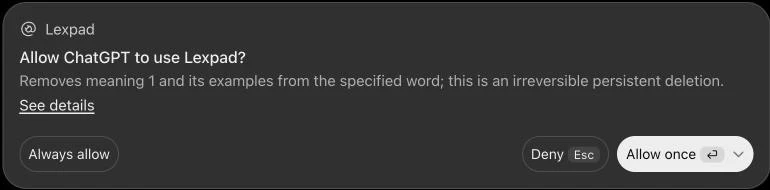
Lexpad marks the tools that remove or delete as destructive, so the assistant always stops and asks first. Here ChatGPT asks before removing a meaning; nothing changes until you choose Allow once.

ChatGPT asking “Allow ChatGPT to use Lexpad? Removes meaning 1 and its examples from the specified word; this is an irreversible persistent deletion.” with Always allow, Deny and Allow once buttons
A real approval card in ChatGPT, for the remove_meaning tool.

OAuth with PKCE

Connections use OAuth 2.1 with PKCE. The assistant holds a token for your notebook only, and Lexpad keeps only a fingerprint of it.

No password shared

You never type your Lexpad password into the assistant, and the assistant never sees it. You approve on Lexpad’s own page.

Deleting needs its own permission

Deleting words is a separate permission, shown on the approval page. Without it, the assistant cannot delete anything.

Asked before changes

Lexpad marks its destructive tools, so ChatGPT and Claude ask you before they delete or remove anything.

Connected apps

Every connected assistant is listed in Settings, under Connected apps, with when it was last used. Disconnect stops it at once.

A notice for every new connection

When a new assistant connects, Lexpad tells you under the bell on Today and by e-mail, so a connection you did not make cannot stay hidden.

Password change disconnects all

Changing or resetting your password, or deleting your account, disconnects every assistant.

Lexpad’s own AI is never called

The assistant writes meanings and examples itself. Requests from an assistant never use Lexpad’s own AI.

What it can never see

Your e-mail address or password, your settings, payments, account or notebook deletion, or anybody else’s notebooks.

Plan and requirements

Plan
Free on every plan, within fair-use limits.
Where
ChatGPT, Claude (web, desktop and Claude Code) and other apps that support remote MCP servers with OAuth
Connection
needed

Custom connectors in ChatGPT and Claude depend on your plan with them and their settings. Lexpad is a website and an app for your words; the assistant is a separate service with its own privacy terms.

Good to know

Questions

“This request expired”

The Lexpad approval page is valid for ten minutes and must be opened in the same browser that started it. Start again from the assistant.

A Lexpad page says “Not found”

Your browser is showing an older copy of Lexpad. Reload the page and try again.

It says it is not connected

Open Settings, Connected apps in Lexpad and check it is listed. If not, connect again from the assistant.

It thinks it can only see 50 words, or does not know a newer ability

It is using the list of Lexpad tools it saved when you connected. In ChatGPT open Plugins, Lexpad, the ⋯ menu, Manage, then Refresh tools. In Claude, disconnect the connector and connect it again.

ChatGPT will not edit or delete anything

Its permission for Lexpad is probably “Allow low-risk tools”, which silently blocks edit and delete tools. Set it to “Allow read-only tools”; ChatGPT then asks Allow once or Deny before each change.

Custom connectors are missing in ChatGPT or Claude

They depend on your plan and settings with that assistant; its own help says where to turn them on.

I connected before 3 October and cannot delete words

Deleting is a newer, separate permission. Disconnect and connect again so you can approve it; refresh the tools for the editing abilities.

Does it cost anything?

No. Connecting an assistant is free on every Lexpad plan, within fair-use limits. Your plan with ChatGPT or Claude is separate.

Lexpad

Bring your notebook into the chat.

Connect Lexpad to ChatGPT or Claude in a few taps. Free on every plan.