Browser extension

Keep the word
where you read it.

The Lexpad extension adds a word you select on any web page to your notebook, with its meaning and the sentence it was in. It is free on the Chrome Web Store and Firefox Add-ons.

Checked against the app on 3 October 2026.

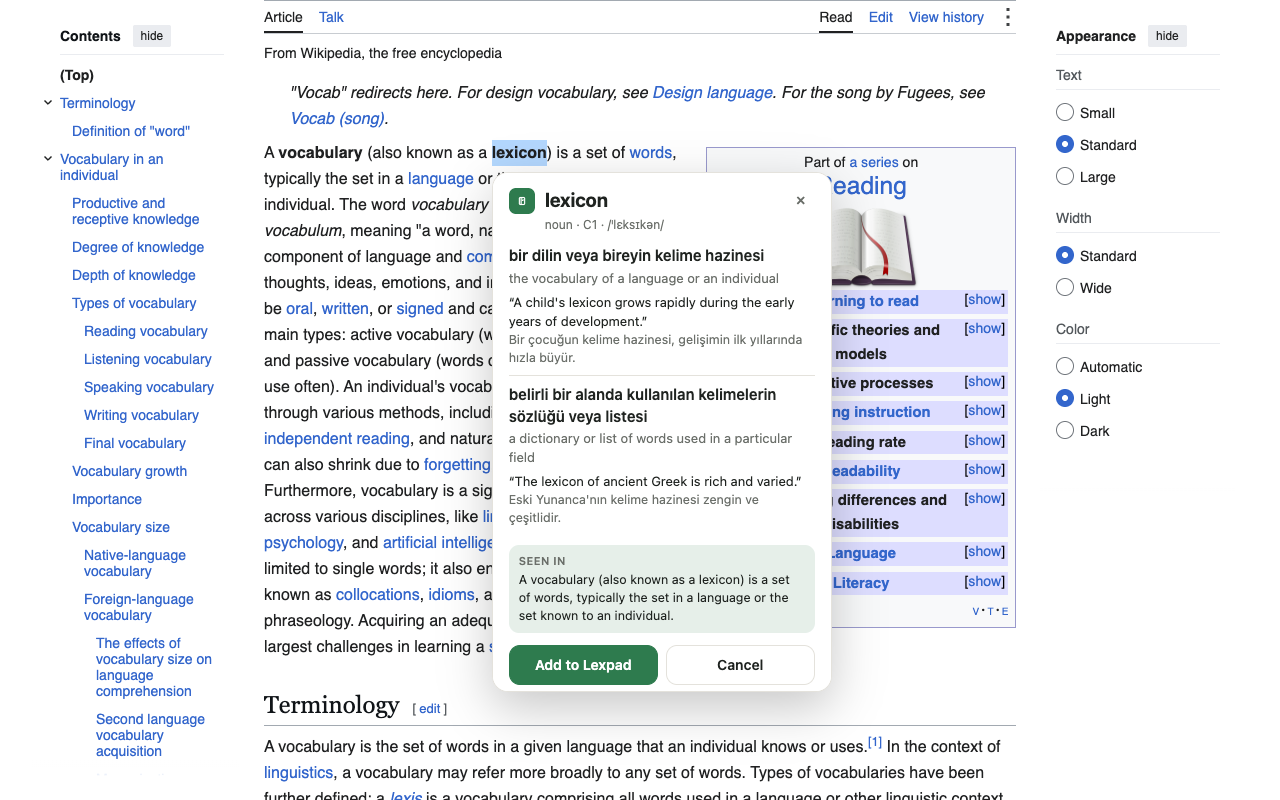
The Lexpad extension card over a Wikipedia article: meanings of lexicon, examples, the sentence it was seen in and Add to Lexpad
Price
Free
Browsers
Chrome, Edge, Brave, Opera, Firefox
Password
Never typed into it
Permissions
Storage, right-click menu, Lexpad API

Connect once, no password

The extension signs in through the Lexpad web app, so you never type your password into it.

  1. Click the Lexpad button in the browser toolbar and choose Connect⁠.
  2. The web app asks “Connect the Lexpad extension?”. Allow it.
  3. Done. The extension has a sign-in of its own, listed under Settings, Signed-in devices as “Browser extension”, where you can sign it out at any time.

Select, look, add

  • Select a word or a short phrase (up to four words) and press the small + button, or right-click and choose “Add to Lexpad”. The right-click item is always there, even with the button turned off.
  • A card opens with the part of speech, level, pronunciation and up to three meanings with examples, written by AI with the page’s sentence as context, and the sentence it was seen in.
  • Press Enter or “Add to Lexpad” to save; Esc closes the card.
  • It is never offered inside text fields, so writing on a page is undisturbed.
Lexpad’s Firefox extension explaining lexicon on Wikipedia, with meanings, examples, the original sentence and an Add to Lexpad button

What is saved

A word you already have is reported as already added.

The word and its meanings

As the card showed them, ready to edit in your notebook.

The sentence

The sentence from the page becomes the word’s first example.

Where you met it

A private note: “Seen on” the page title and address.

Choosing the notebook

The extension menu lets you pick which notebook new words go to. If a selected word is in a script that notebook cannot hold, for example Arabic while an English notebook is chosen, it goes to the one notebook that can, and the card tells you which. The same menu switches the + button on or off and disconnects the browser.
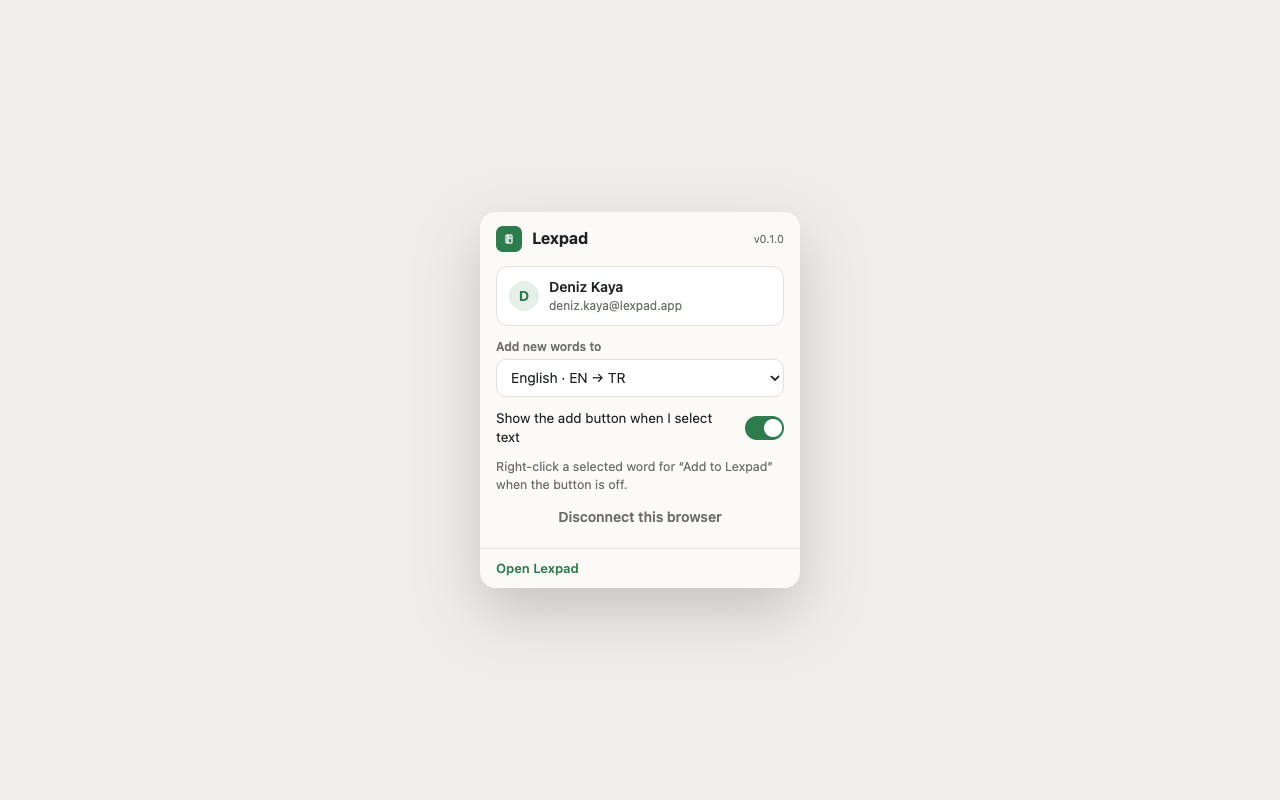
Lexpad extension settings with a notebook selector and a toggle for the text-selection button

Privacy and permissions

  • It asks only for storage, the right-click menu and access to the Lexpad API; never your tabs, your history or permission to run remote code.
  • It never sends what is on the pages you read. While connected, it fetches your list of notebooks when a page loads, so it can offer the right one.
  • Opening the card sends the selected text and its sentence so the meaning can be written; adding the word saves the page’s title and address with it.
  • Read the privacy policy for the full account.

Browsers

Chrome and Chromium browsers

Chrome, Edge, Brave and Opera, through the Chrome Web Store.

Firefox

Firefox on a computer, from Firefox Add-ons. Firefox for Android is not supported yet.

Language

The extension’s own screens are in English; words and meanings can be in any of your notebook languages. Adding a word needs a connection.

Plan

The extension is free. Its meanings use the same AI allowance as the app, which Pro raises.

Good to know

Questions

Does it read the pages I visit?

No. It never sends page content. It sends only the text you select and its sentence when you open the card, and the page title and address when you add the word.

Can I use it without the + button?

Yes. Turn the button off in the extension menu and use the right-click “Add to Lexpad”, which is always there.

Lexpad

Your next word is worth keeping.

Lexpad is free to start, on the web and on Android. Bring the words you meet.