Replay the last line, key R
With one key.
 Lexpad
Lexpad Player · for Mac and Windows · Free
Lexpad Player is a free video player for language learning, in Lexpad for Mac and Windows. It plays your own films and series with two subtitles at once, or three, each where you want it. Press R to replay the last line. Click any word in a subtitle to see its meaning and keep it for practice. Watching needs no account.
Updated . Checked against the app on 27 October 2026.
What it does for learners
The tools that matter when the film is in a language you are still learning, each one key or one click away.
With one key.
Pick it, and the subtitle moves into sync.
0.1 seconds at a time.
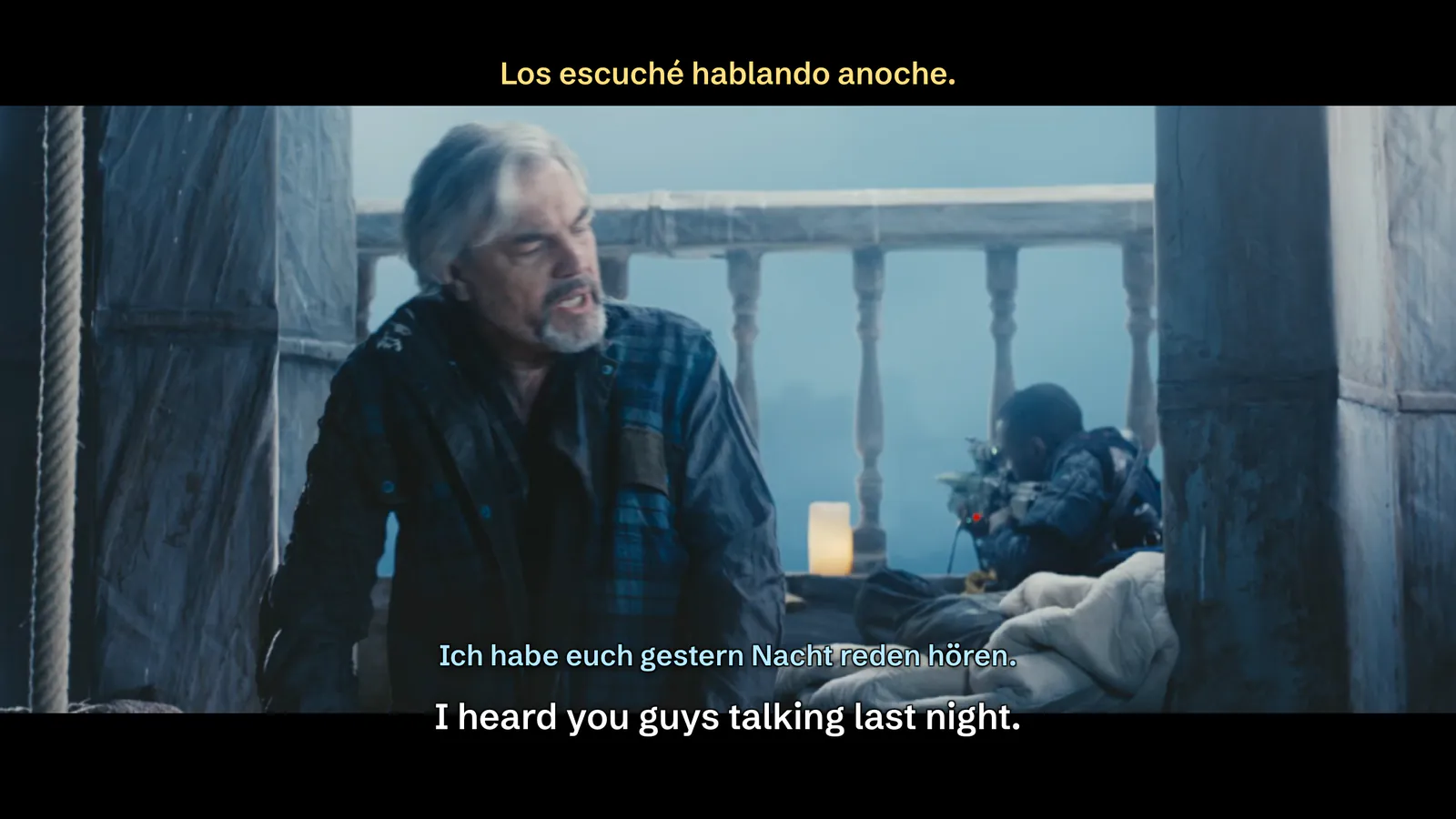
Each with its own size, font, colour and place.

Font, size, colour and edge. Then drag it anywhere, even into the black bars.
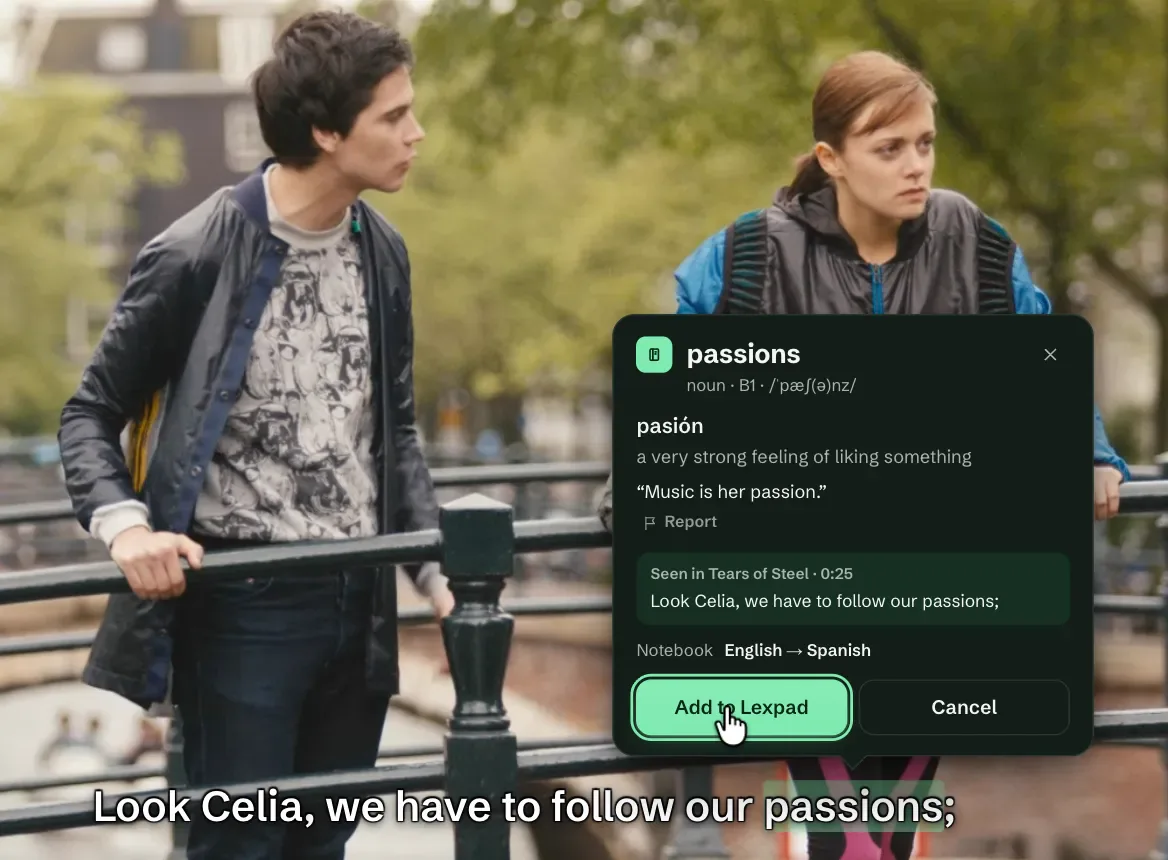
For its meaning, and keep it with its sentence.
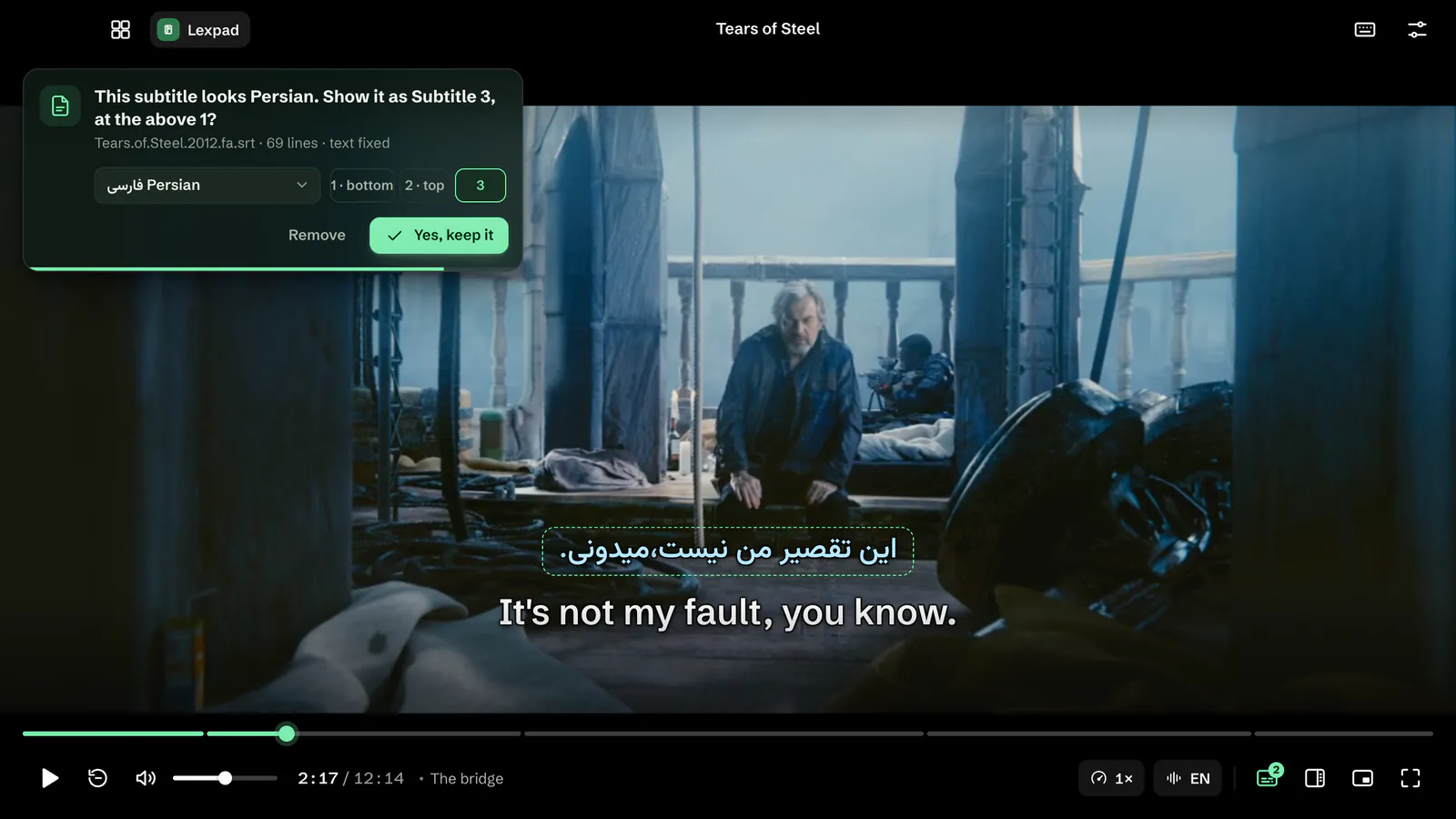
With old Windows-1256 files fixed as they load.
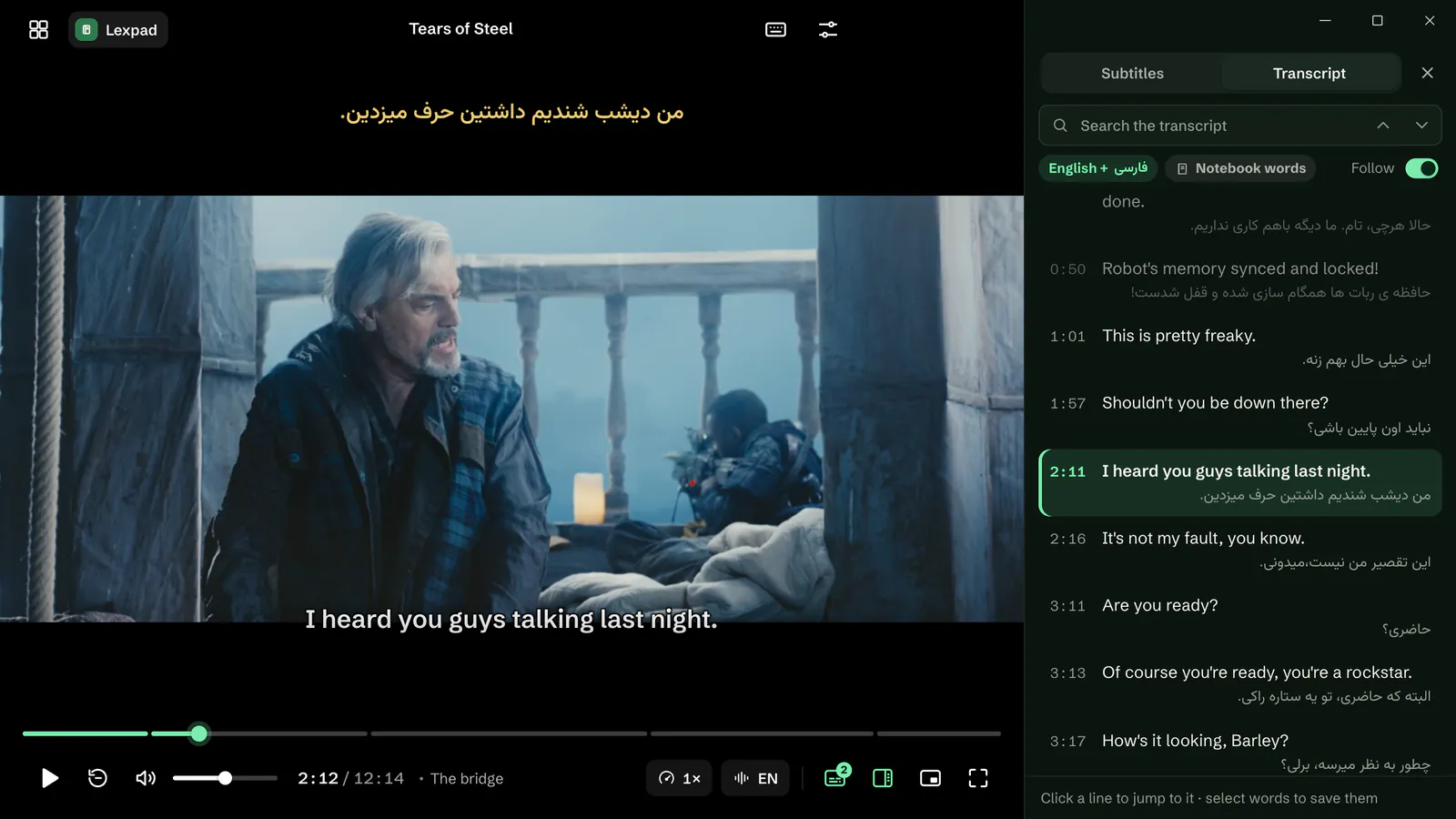
To search, jump through and save words from.

Sign in only for meanings and to keep words.
Show the language you are learning, your own language and a third one together. By default your learning language sits at the bottom in white, your own at the top in warm yellow, and a third just above the first, in sky blue. Put a line in a wide film’s black bars and it never covers a face.
Point at a subtitle and a small grip appears with its number, language and place. Drag the grip to move it; a corner makes the text bigger or smaller, a side makes the line wider or narrower. Guides snap it to the centre, the safe lines, the picture’s edges and the black bars. Double-click the grip to put it back.
Each subtitle has its own timing. In the Subtitles panel, move it 0.1 or 0.5 seconds earlier or later, or type the exact number. From the keyboard, Z and X move the subtitle you used last by 0.1 seconds, and Shift + Z or X by half a second.
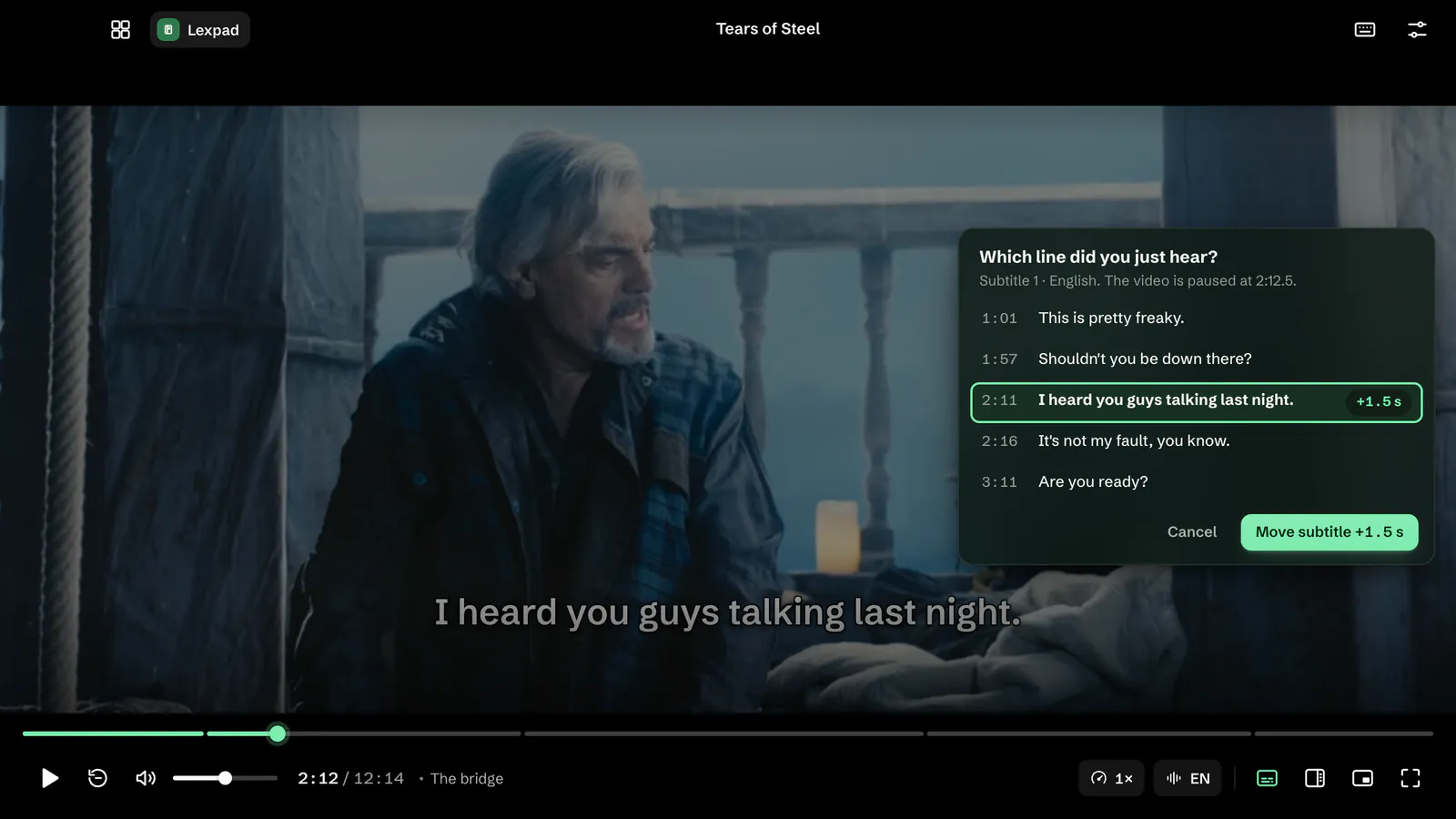
I just heard this line. Press H right after a line is spoken. The video pauses and shows the five lines around that moment; pick the one you heard, and Lexpad moves the subtitle by exactly the gap, for example “Move subtitle +1.5 s”. Undo it with ⌘ Z or Ctrl Z.
Drop a subtitle file on the video at any moment, alone or several at once. It shows straight away, and a small card in the corner says which language it found and where it will go: your learning language at the bottom, your own at the top. The video keeps playing, and the card keeps its answer after a few seconds if you do nothing.
.fa.srt or English), the tag inside a video file, or the letters of the text itself.Click a word in any subtitle, or drag across up to four words for a phrase. The video pauses and the Lexpad card opens beside the line with the meaning, written by AI with the line as context. Press Add to Lexpad: the word goes into your notebook with the whole line as its example and a note such as “Seen in Tears of Steel · 0:25”, and the video plays on.
Press T for the transcript beside the video: every line, the current one highlighted. Click a line to jump there. Search it with ⌘ F or Ctrl F. Show your own language under each line, and select words to save them.
“Mark words already in my notebook” (off at first) underlines the words you have saved, on the video and in the transcript.
Lexpad’s Start window says it in five words: Watch. Click a word. Keep it. Press Open a video… (⌘ O or Ctrl O) or drop a video on the window, and it plays at once, with no account. Continue with Google or Apple is there for your notebook when you want it. A video opened from Finder or File Explorer just plays.
Drag the window by the video itself to move it; double-click for full screen.
Saved words while you watched? The end of the video lists them with their meanings (“5 words saved tonight”), with Practise now for a short session of exactly those words, Watch again, and a code to practise them on your phone.
film.en.srt beside film.mkv, is added on its own, also from a Subs or Subtitles folder. Subtitles inside an MKV or MP4 file are listed under “In this file” in the subtitles menu.Episodes in one folder (S01E03, 1x03, Episode 3) play in order. The next one starts after a short countdown, or press Shift + N. Every video opens where you stopped, and Continue watching lists them.
Pick the audio track, with its language and channels. Speed from 0.5× to 2× keeps the voice natural. Volume goes up to 200% for quiet films.
Press ? in the player for this list. Single keys can be turned off in the player’s Settings.
| Key | What it does |
|---|---|
| Space / K | Play or pause |
| ← / → | Back or forward 5 seconds (10 in Settings) |
| J / L | Back or forward 10 seconds |
| Shift ← / Shift → | Previous or next line |
| R | Replay this line |
| [ / ] | Slower or faster |
| \ | Normal speed |
| Shift N / Shift P | Next or previous episode |
| Key | What it does |
|---|---|
| C | Hide or show all subtitles |
| 1 / 2 / 3 | Hide or show one subtitle |
| S | Subtitles panel |
| Z / X | Timing 0.1 s earlier or later |
| Shift Z / Shift X | Timing 0.5 s earlier or later |
| H | I just heard this line |
| W | Pick a word with the keyboard |
| T | Transcript |
| Key | What it does |
|---|---|
| F | Full screen |
| Esc | Leave full screen, close a panel |
| I | Mini player |
| ↑ / ↓ | Volume |
| M | Mute |
| A | Next audio track |
| ⌘ O / Ctrl O | Open a video |
| ? | All shortcuts |
Also: ⌘ F or Ctrl F searches the transcript, ⌘ Z or Ctrl Z undoes, ⌘ , or Ctrl , opens the player’s Settings. On Windows, F11 is full screen too. On a Mac the menu bar has Playback and Subtitles menus with the same commands.
Files whose picture or sound the screen cannot show directly are converted on your computer while you watch, with your graphics card where it can. Lexpad uses FFmpeg, under the LGPL licence; the player’s Settings name it with its licence.
Lexpad Player is free. Playing videos and every subtitle tool work without signing in. A meaning and your notebook need a free Lexpad account: the first time you add a word, the card says “Sign in to keep it” and offers Google, Apple or other ways, in your browser. Choose Not now and the word is kept on this computer, then goes to your notebook once you sign in.
Meanings use the same AI allowance as the rest of Lexpad: 25 AI cards a day (400 a month) on Free, 150 AI cards a day (2,000 a month) on Pro. Every new account gets Pro free for 7 days, no card needed. Pricing.
Your video and subtitle files are played on your computer and are never uploaded. When you click a word, the word and its line are sent so the meaning can be written. What the app counts about watching (the kind of file, never its name, and the minutes watched) is described in the privacy policy.
Lexpad Player comes with Lexpad for Mac and Windows from 0.3.20: your notebook in one window, the player in another. It needs macOS 11 or later, or 64-bit Windows 10 or 11. More about the app: Lexpad for Mac and Windows.
Each opens its own page with the install steps, the Microsoft Store and the file’s SHA-256.
Lexpad Player is a free video player for language learners, built into Lexpad for Mac and Windows since version 0.3.20 (27 October 2026). It plays the learner’s own video files (MKV, MP4, AVI, MOV, WebM and more) with up to three subtitles at once (SRT, WebVTT, ASS/SSA or tracks inside the file), each placed, sized, styled and timed on its own. R replays the last line; H asks which line you just heard and shifts that subtitle by the exact gap. It finds each subtitle’s language on the computer, shows right-to-left lines correctly and fixes old Windows-1256 Persian and Arabic files. Clicking a word (or dragging across up to four) shows its meaning and saves it, with its line, to a Lexpad notebook for spaced-repetition practice. It also has a searchable transcript, audio tracks, series in order with resume, and a mini player. Watching needs no account; meanings and saving need a free Lexpad account.
Film in the pictures: Tears of Steel (CC) Blender Foundation, mango.blender.org, under CC BY 3.0, with its own subtitles.
Good to know
No. Videos, subtitles, styles, timing and the transcript all work without an account. A free account is needed only for meanings and for saving words to your notebook.
Yes. Press R and the line you just heard plays again from its start, with its subtitle. Shift with ← or → goes to the line before or after.
Yes, and three. Open the video in Lexpad Player and drop two subtitle files on it, for example English and Spanish: the first goes to the bottom, the second to the top. Each has its own size, font, colour, place and timing.
Drop it on the video, or choose Add a subtitle file… in the subtitles menu or the right-click menu. A file named like the video, such as film.en.srt, is added by itself when the video opens. Subtitles inside an MKV or MP4 file are listed under In this file.
Press H right after a line is spoken and pick that line from the list: Lexpad moves the subtitle by exactly the gap. Or use Z and X for 0.1 seconds, Shift with them for half a second, or type the offset in the Subtitles panel. Each subtitle has its own timing.
Yes. Each line runs right to left with its punctuation in place, and old files saved in the Windows-1256 encoding are fixed as they load. Vazirmatn and Noto Naskh Arabic are among the fonts.
It is made for it: two or three subtitles at once, each timed and placed on its own, R to replay a line, and a click on any word to see its meaning and keep it, with the line, for spaced-repetition practice in Lexpad.
No. Your video and subtitle files are played on your computer. When you click a word, the word and its line are sent so its meaning can be written; a word you add is saved to your notebook.
Yes. Lexpad Player is part of the free Lexpad app for Mac and Windows. Meanings use your AI allowance (25 AI cards a day (400 a month) on Free); the numbers are on the pricing page.
Yes, if you choose so. In Lexpad, Settings, Video player, pick the file types. On a Mac Lexpad asks you first; on Windows it opens the Default apps page where you choose Lexpad. Lexpad never takes them by itself.
Lexpad Player is in Lexpad for Mac and Windows. The words you save from it are in your notebook on the web, in the Android app and on iPhone, ready to practise.
Lexpad
Lexpad Player is free in Lexpad for Mac and Windows. Bring a video and its subtitles.