 Lexpad
 extension · YouTube and more
Dictation and shadowing practice
on the videos you already watch.
Lexpad’s free browser extension turns a subtitle line into a short dictation: listening practice with an answer you can check. Replay the line, type what you hear and see each word checked, or copy it, on YouTube, Netflix, TED and other video sites. With Pro, in Chrome and Edge, Say it back listens while you repeat the line and shows which words it heard.



The extension is free and works with a free Lexpad account. After you add it, click Connect to Lexpad and sign in, or create your account. You never type a password into the extension.
The extension is free and works with a free Lexpad account. After you add it, click Connect to Lexpad and sign in, or create your account. You never type a password into the extension.
The extension is free and works with a free Lexpad account. After you add it, click Connect to Lexpad and sign in, or create your account. You never type a password into the extension.
The extension is free and works with a free Lexpad account. After you add it, click Connect to Lexpad and sign in, or create your account. You never type a password into the extension.
Works in Chrome, Edge and Firefox on your Mac. The extension is free and works with a free Lexpad account. After you add it, click Connect to Lexpad and sign in, or create your account. You never type a password into the extension.

The extension is for Chrome, Edge and Firefox on a computer. On a phone, add words in the Android app or the web app. Free to start. Every new account gets Pro free for 7 days, no card needed.
The extension is free and works with a free Lexpad account. After you add it, click Connect to Lexpad and sign in, or create your account. You never type a password into the extension.
The extension is free and works with a free Lexpad account. After you add it, click Connect to Lexpad and sign in, or create your account. You never type a password into the extension.
The extension is free and works with a free Lexpad account. After you add it, click Connect to Lexpad and sign in, or create your account. You never type a password into the extension.

The extension is for Chrome, Edge and Firefox on a computer. On a phone, add words in the iPhone app or the web app. Free to start. Every new account gets Pro free for 7 days, no card needed.
The extension is for Chrome, Edge and Firefox on a computer. On a phone, add words in the iPhone app or the web app. Free to start. Every new account gets Pro free for 7 days, no card needed.
Updated . Checked against the app on 9 November 2026.
- Price
- Replay, typing and Copy: free. Say it back: Pro
- Browsers
- Chrome, Edge and Firefox; Say it back in Chrome and Edge
- Before you sign in
- Type what you hear works
- Where
- YouTube, Netflix, TED and other video sites, and films on your computer in Lexpad Player on Mac and Windows
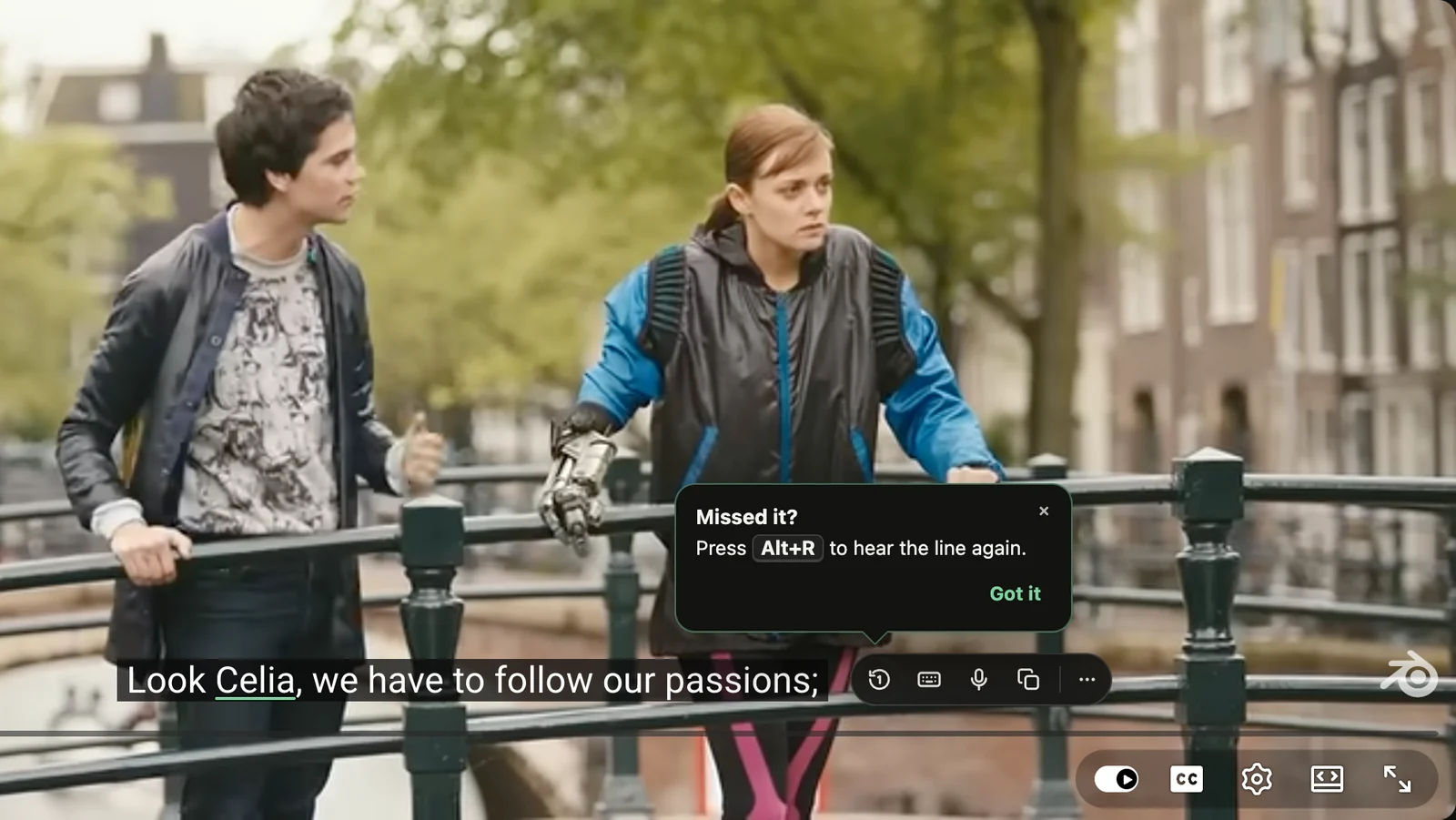
Replay the line
Missed a line? Dragging the video back ten seconds gives you the end of the line before and the start of the next one. Replay the line starts the same line again from its first word. Click the first tool under the subtitle, or press Alt R (⌃⇧R on a Mac).
- It works on YouTube, Netflix, TED and other video sites, in full screen too.
- Hear again inside Type what you hear, and the listening step of Say it back, use the same replay.
- When a site’s player will not let Lexpad move the video, Replay steps aside with a short note. Typing and copying keep working.
Type what you hear: dictation practice
Dictation is an old classroom exercise, and it still works: every word you cannot write is a word you did not really hear. Here it runs on the line you just watched.
- Rest your pointer on the line. Turn subtitles on first. The video waits, and the tools show under the line.
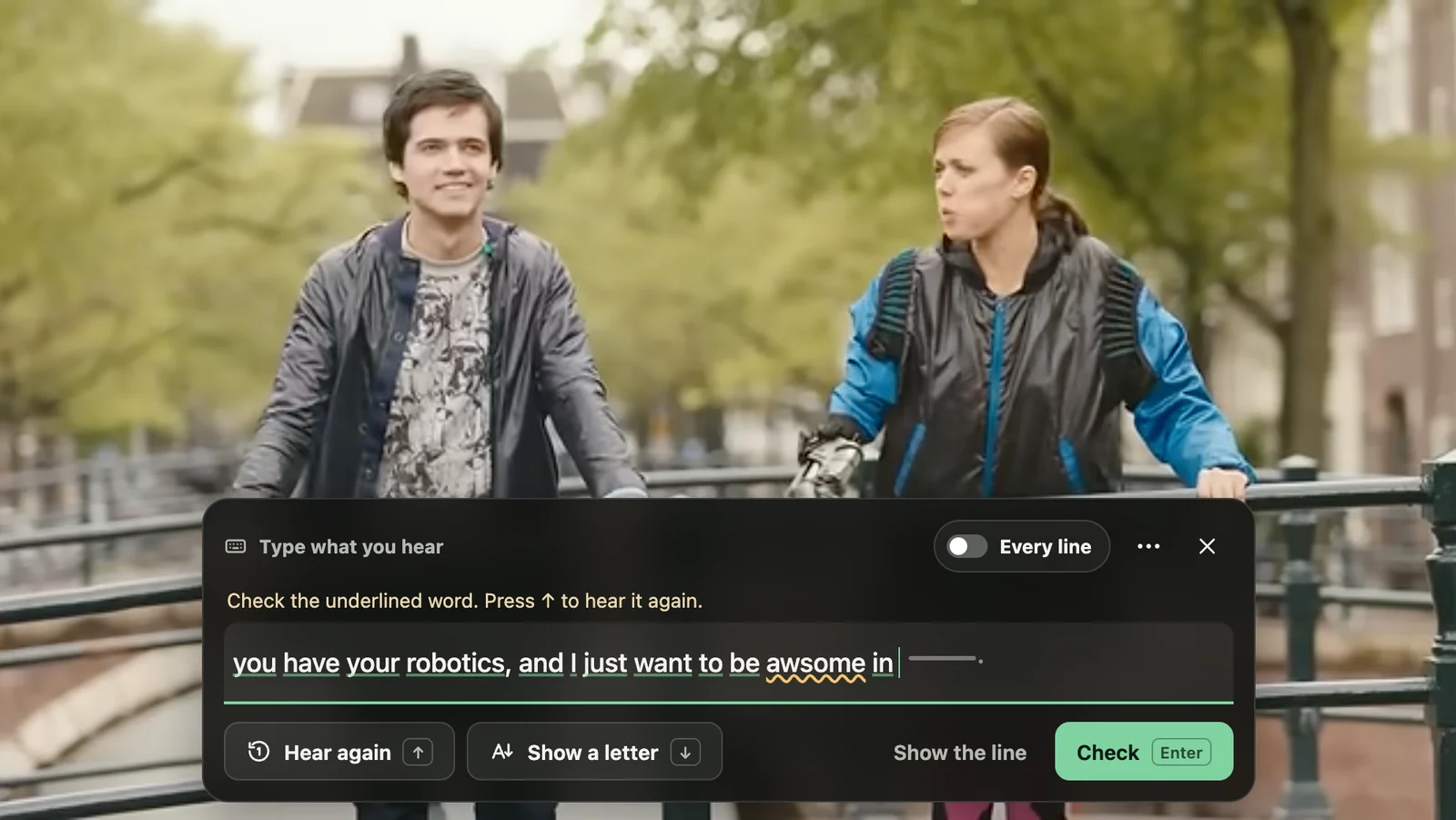
- Choose Type what you hear. It is the keyboard button in that row. The line hides, plays once more and stops.
- Type it. Type what you heard. Each word is checked as you finish it, so you see straight away which words you caught.
- Ask for help, or play on. Hear again plays the line once more, Show a letter gives you a nudge, and Show the line gives it to you. A line typed right says “Right. Playing on.”, and the video carries on.
Want to type every line of a scene? Turn on Type every line with Alt Shift T (⌃⇧T on a Mac): the video stops at each line until you have typed it, and the same keys turn it off.
Type what you hear is free dictation practice on any video you choose. It works before you sign in, in Chrome, Edge and Firefox. Short lines of five to twelve words are the best size; the method is in how to practise dictation with videos.
Say it back: shadowing practice
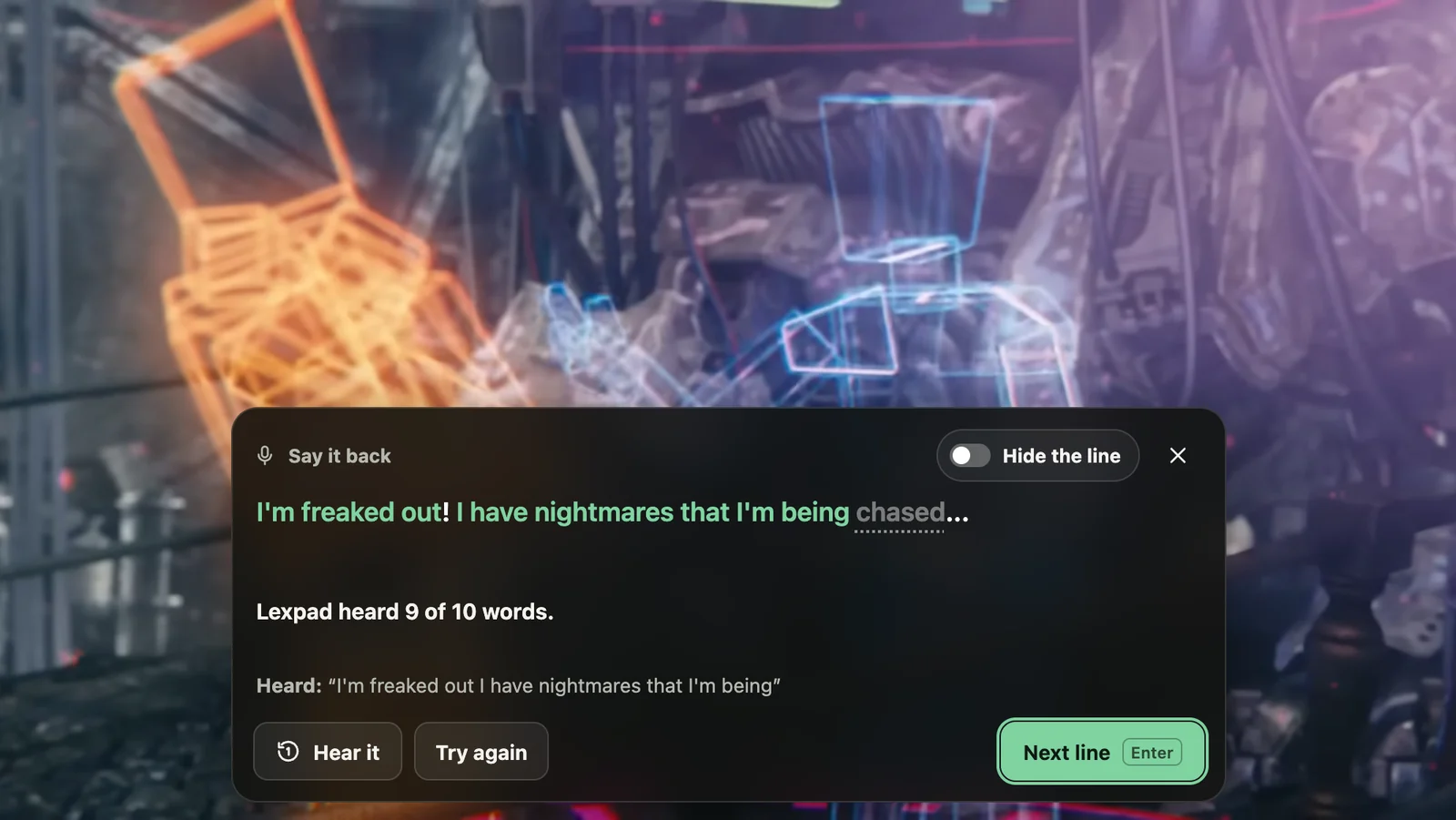
Say it back is for speaking. It is shadowing with a check. Hear the line, then say it out loud. Lexpad marks the words it heard and dims the ones it missed, for example “Lexpad heard 9 of 10 words.” Try again as often as you like.
- Part of Pro, and of the 7-day trial every new account gets. In Chrome and Edge, which have a speech service built in.
- The first time, your browser asks once to use the microphone and names the site.
- Your browser turns your voice into text, and Lexpad gets only that text, which it compares with the line.
- In Firefox, Replay the line and Type what you hear work as usual.
The shadowing technique, saying a line straight after the speaker, is the method behind it. How often to do it, and what the research says it helps: the shadowing technique with videos.
Where it works
- YouTube
- Netflix
- TED
- Lesson pages and web players
The tools work on subtitles a site shows as text, in normal view and full screen. Copy the line puts the whole subtitle on your clipboard. Saving a word from the same line works as always: click it, and its card opens above the line. Words from YouTube subtitles · Netflix and other video sites
Try it before you open a video
After you add Lexpad, a welcome page opens with a short clip from the film Sintel that waits on its line. Point at the line and try Replay, Type it and Copy, with nothing to sign in to. See the welcome page.
Keys
| What it does | Windows, Linux, ChromeOS | Mac |
|---|---|---|
| Replay the line | Alt R | ⌃⇧R |
| Type every line, on or off | Alt Shift T | ⌃⇧T |
To change a key, open chrome://extensions/shortcuts in Chrome or edge://extensions/shortcuts in Edge. In Firefox, open Add-ons and themes, then the gear, then Manage Extension Shortcuts. A Mac uses Control, not Option, because Option and a letter types a character there.
On films saved on your computer
Lexpad Player, the free video player in Lexpad for Mac and Windows, has keys for shadowing and dictation with movies: Q pauses after each line, R replays it, Shift R plays it again and again, and E plays it once more, slowly. Shadowing with films on your computer.
Type what you hear is in Lexpad Player on Mac and Windows too, and it is free: ⇧ T (Shift+T) stops the film at every line, and ⌥ T (Alt+T on Windows) stops it for this line only. Say it back is in Lexpad Player on Mac, as part of Pro: ⇧ S (Shift+S) for every line, ⌥ S for this one. Your Mac turns your voice into text, and Lexpad gets only that text.

Price
Replay the line, Type what you hear and Copy the line are free on every plan. Say it back is part of Pro, 4.99 USD a month or 29.99 USD a year. Every new account gets Pro free for 7 days, no card needed. Saving a word from a subtitle counts toward the extension’s daily number: 5 words a day on Free, 200 on Pro. Plans and prices
Privacy
- Type what you hear checks your typing inside your browser.
- Say it back: your browser’s speech service turns your voice into text while the microphone is on, and Lexpad gets only that text.
- While you are signed in, the extension counts how the tools are used, such as how many lines you typed and how many words were right. Never the line, what you typed or what the browser heard.
- Read the privacy policy for the full account.
Good to know
Questions
Can I practise dictation online for free?
Yes. Type what you hear is free in Chrome, Edge and Firefox, and it works before you sign in. Open any YouTube video with subtitles, rest your pointer on a line and choose the keyboard button under it.
Is this the shadowing technique?
Close to it. Shadowing means saying a line along with the speaker, or right after. Say it back is the second kind: hear the line, repeat it, and see what was heard. To speak along at the same time, play the video and talk over it. In Lexpad Player, Q pauses after each line so you can say it before the next one starts.
Does it work with films on my computer?
Yes, in Lexpad Player on Mac and Windows: the same Type what you hear, and Say it back with Pro on a Mac. The extension’s keys work there too.
Does it work in Firefox?
Yes. Replay the line, Type what you hear and Copy the line work in Firefox. Say it back needs a browser with a speech service: Chrome and Edge.
Which languages?
Any language whose subtitles the site shows as text. Type with that language’s keyboard; words are checked as you finish them. Say it back listens in the language of the line when your browser’s speech service knows it, and says so when it does not.
What happens to my voice?
While the microphone is on, your browser’s speech service turns what you say into text, and Lexpad gets only that text, which it compares with the line. The speech service may handle the sound under your browser maker’s own privacy policy.
Do I need an account?
Not for Type what you hear: it works before you sign in. Saving words needs a free Lexpad account, and Say it back needs Pro or the trial.
Is there a key to start typing?
Alt+Shift+T (⌃⇧T on a Mac) turns Type every line on or off. For one line, click Type what you hear under it.
Lexpad
Practise your next line.
Add the free extension, open a video with subtitles and rest your pointer on a line.
The extension is free and works with a free Lexpad account. After you add it, click Connect to Lexpad and sign in, or create your account. You never type a password into the extension.
The extension is free and works with a free Lexpad account. After you add it, click Connect to Lexpad and sign in, or create your account. You never type a password into the extension.
The extension is free and works with a free Lexpad account. After you add it, click Connect to Lexpad and sign in, or create your account. You never type a password into the extension.
The extension is free and works with a free Lexpad account. After you add it, click Connect to Lexpad and sign in, or create your account. You never type a password into the extension.
Works in Chrome, Edge and Firefox on your Mac. The extension is free and works with a free Lexpad account. After you add it, click Connect to Lexpad and sign in, or create your account. You never type a password into the extension.
The extension is for Chrome, Edge and Firefox on a computer. On a phone, add words in the Android app or the web app. Free to start. Every new account gets Pro free for 7 days, no card needed.
The extension is free and works with a free Lexpad account. After you add it, click Connect to Lexpad and sign in, or create your account. You never type a password into the extension.
The extension is free and works with a free Lexpad account. After you add it, click Connect to Lexpad and sign in, or create your account. You never type a password into the extension.
The extension is free and works with a free Lexpad account. After you add it, click Connect to Lexpad and sign in, or create your account. You never type a password into the extension.
The extension is for Chrome, Edge and Firefox on a computer. On a phone, add words in the iPhone app or the web app. Free to start. Every new account gets Pro free for 7 days, no card needed.
The extension is for Chrome, Edge and Firefox on a computer. On a phone, add words in the iPhone app or the web app. Free to start. Every new account gets Pro free for 7 days, no card needed.