 Lexpad
Guide · Video player
The best video player for learning a language: what it should do, and why
A normal video player is built to keep you watching. A player for learning a language has to do the opposite now and then: stop on the line you missed, play it again from its first word, slow it down, hide the translation, wait while you say it. This guide goes through what a good video player for language learning should do, why each of those things helps, and the key for each in Lexpad Player. I make Lexpad Player, a free player for Mac and Windows, so use the list to judge any player, mine included.
By Reza Pirighadim, who makes Lexpad. Updated 10 November 2026. The keys come from the Player’s own keys sheet (press ?). How this guide is made.
In short: what a player for learning needs
A video player for language learning should let you:
- Show two subtitles at once, the language you learn and your own.
- Hide or show each subtitle with one key, mid-scene.
- Replay the line you just heard, from its first word.
- Slow one line down without making the voice strange.
- Pause after every line, so you can say it.
- Hide a line and let you type what you heard.
- Listen while you say the line back, and show what it caught.
- Fix subtitle timing in a second, for each subtitle on its own.
- Show the whole film as text you can search.
- Keep a word with its line, and bring it back for practice later.
Lexpad Player does all ten; Say it back is on a Mac, with Pro. The rest of this page is the evidence for each, the key that does it, and a routine that uses them.
Two subtitles at once
Dual subtitles, their language and yours on the same screen, used to be a classroom trick. The research has caught up with it. In a seven-week study with four English-major classes at a Chinese university, students who watched with bilingual subtitles did better on recognising and recalling the new words than students with subtitles in one language, and the advantage was still there on the delayed test (Li and Hennebry-Leung, 2022). With 60 lower-intermediate learners, a dual-subtitled clip taught more words when it was watched again straight away than when it was watched once (Lo, 2024).
Same-language subtitles still do the most for your ear: Dutch listeners who watched Scottish and Australian English with English subtitles repeated new sentences in those accents better afterwards, and with Dutch subtitles they did worse than with none (Mitterer and McQueen, 2009). So two subtitles are a stage, for the weeks when you cannot yet follow with theirs alone. The stages are in which subtitles to use and when.
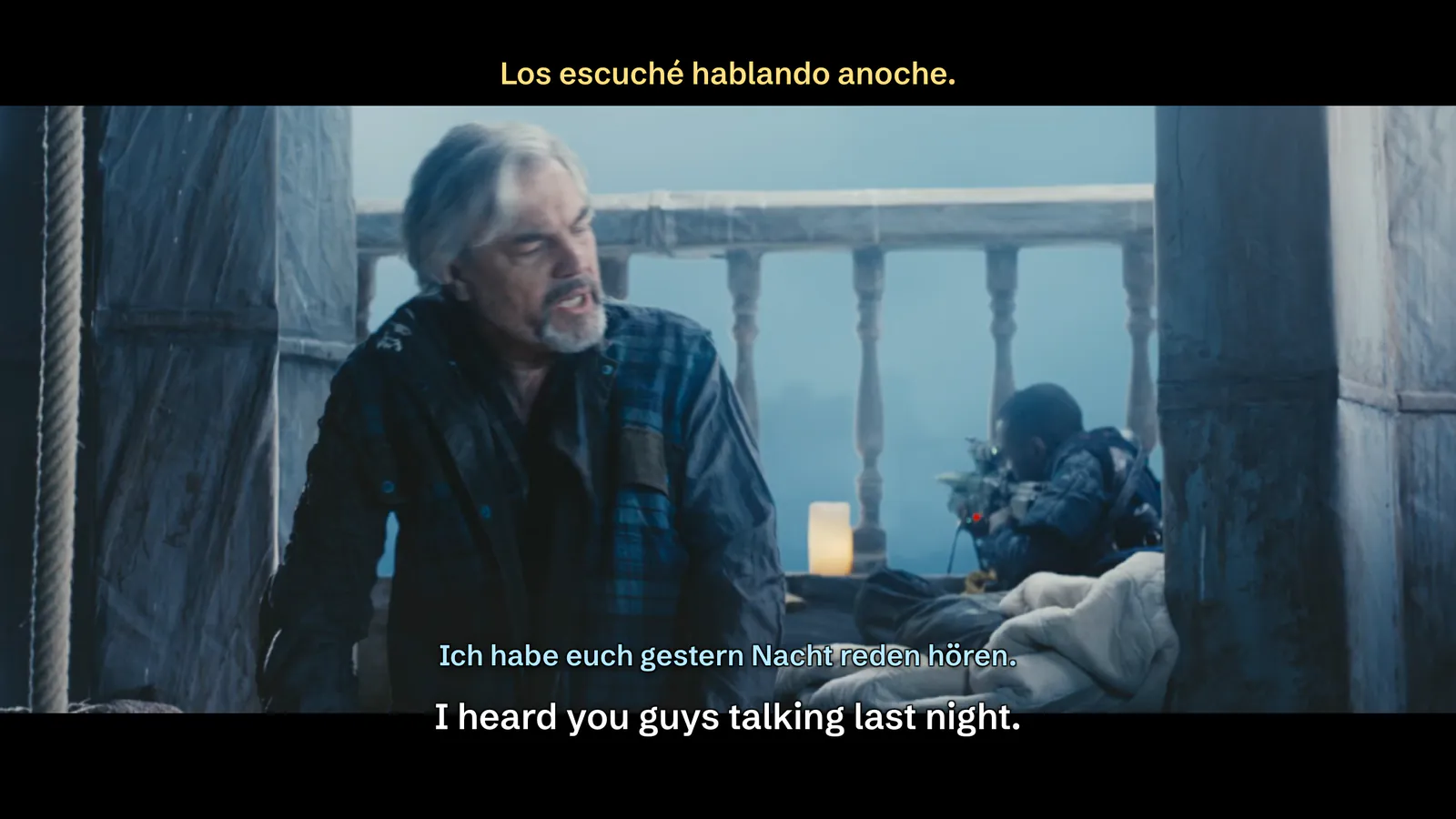
A good player shows two subtitles at the same time, each in its own place, so your own language never sits on top of the one you are learning.
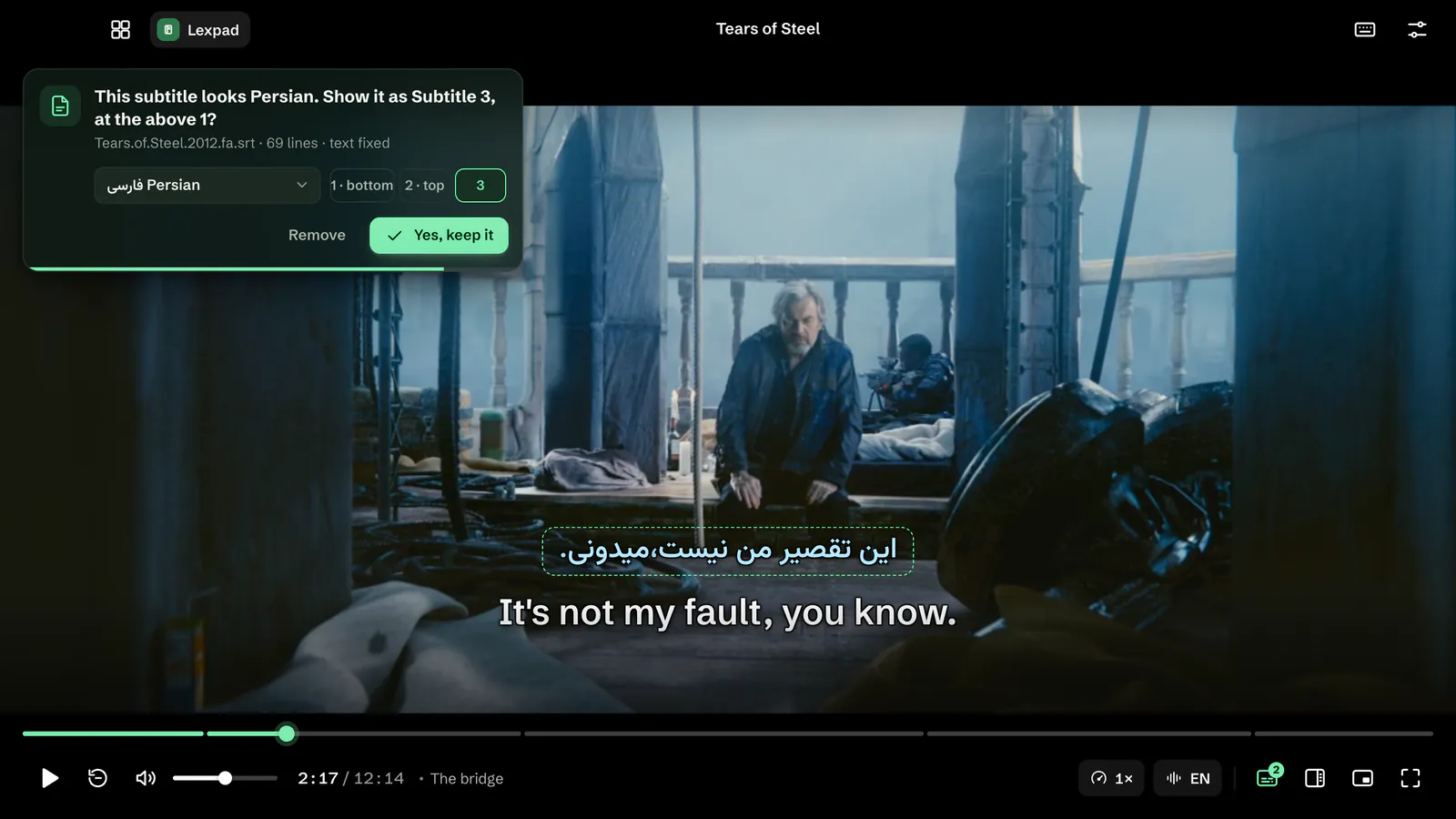
In Lexpad Player: open the film, then drop a second subtitle file on it. The language you learn goes to the bottom in white, your own to the top in warm yellow, and a third fits just above the first in sky blue. Each one remembers its place, size and look for the next film.

One key for each subtitle
Here is where the stages break down in practice. You are in a scene with both subtitles on, and you want to try the next line with theirs alone. If turning a subtitle off means opening a menu, the scene is gone by the time you are back, so you never do it, and you stay in the easy stage for months.
A good player lets you hide and show each subtitle with a single key while the film plays, and puts it back exactly where it was.
In Lexpad Player: 1, 2 and 3 hide or show Subtitle 1, 2 or 3, and C hides or shows them all. A line comes back in the same place, at the same size. Inside one scene: watch with both on, press 2 to try the next line with theirs alone, press 2 again when you are stuck.

Replay the line, not ten seconds
When you miss a line, the natural move is to jump back ten seconds. You land in the middle of the line before, hear the end of it, then the line you wanted, then the start of the next one. The sentence you needed, from its first word, is wrapped in noise.
Giving the listener the controls helps. In one study, learners who could control the speed of recorded speech understood more than learners who could not (Zhao, 1997). A replayed line is the same idea applied to time: a tiny listening exercise with an answer you can check against the subtitle.
A good player has one key that plays the current line again from its first word, and two more for the line before and the line after.
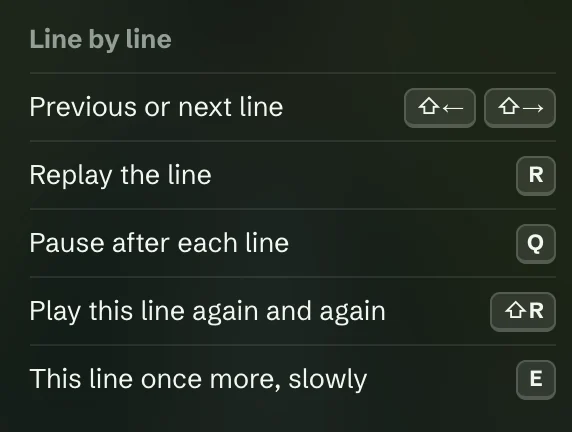
In Lexpad Player: R goes back to the start of the line you just heard and plays it. Shift ← and Shift → jump to the previous or next line. ← and → still skip five seconds, and J and L skip ten, for when you really do want to scrub.

Slow one line down
The slow play you want is for one hard line, not the whole film. Slowing a whole film to 0.75× makes every easy line dull and does nothing for the one line you cannot catch. The slowdown you want is for this line, once, and then back to normal speed. The voice should keep its pitch, and the slow play should end by itself.
A good player plays one line slowly on one key, keeps the voice natural, and returns to normal speed on its own.
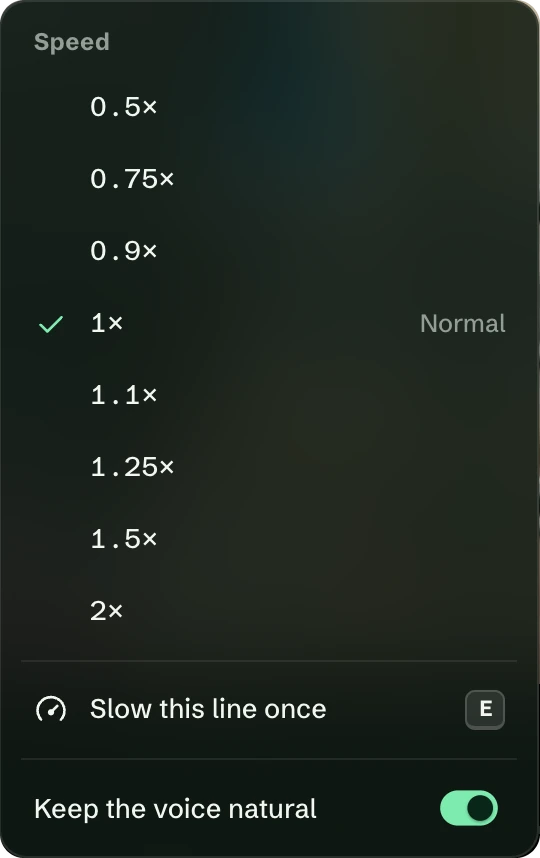
In Lexpad Player: E plays this line once more at 0.75×, then the film goes back to its speed. For a whole film, [ and ] step the speed from 0.5× to 2× and \ puts it back to 1×, with “Keep the voice natural” on. The same slow line is “Slow this line once” in the Speed menu.
Pause after every line, for shadowing
Shadowing is saying a line right after the speaker, or along with them. Most of the research is about listening. Over nine lessons with 43 university learners of English, both a lower and an intermediate group got better at hearing the sounds, and only the lower group improved on the listening questions (Hamada, 2016). It seems to help most when your ear is still catching up with the speech, which is exactly when a fast film is hardest.
The practical problem is time. Lines in a film come one after another, so there is no room to say anything. A player that pauses after each line gives you that room, and a loop lets you drill one line until it sits in your mouth. How often and how long: the shadowing technique with films.
In Lexpad Player: Q turns on Auto-pause. The film stops at the end of each line; a note says “Paused after the line”, Space plays on, R plays the line again. Shift R plays this line again and again and stops by itself after 20 plays. Both need a subtitle on the film.

Type what you hear: dictation with movies
Dictation shows you the gap between following a story and hearing the words. In a controlled study, two groups of 30 elementary learners took the same 20-session course, and one group also wrote eleven dictations. On a 40-item listening test the dictation group gained 13.9 points and the other group 6.0 (Kiany and Shiramiry, 2002).
A good player hides the line, plays it, waits while you type, and checks your words against the subtitle, so you learn which words you did not catch.
In Lexpad Player on Mac and Windows: ⇧ T (Shift+T) turns on Type it for every line; the film stops at each line with the line hidden, a typing box opens, and each word is checked as you finish it. Hear again, Show a letter and Show the line are there when you need them. For one line only, ⌥ T on a Mac or Alt T on Windows. Typing is free. Line length and method: dictation with videos.

Say it back: shadowing with a check
Typing tests the ear. Saying the line tests the mouth. A review of the shadowing research suggests the order: shadowing for listening first, then for speaking once you can catch the sounds (Hamada, 2019). The hard part of the second stage is feedback: you can hear yourself, but not which word came out wrong.
A good player listens while you say the line and shows which words it caught.
In Lexpad Player on Mac: ⇧ S (Shift+S) turns on Say it back for every line, ⌥ S for this line. After the line plays it is your turn; the result marks the words that came through and dims the ones that did not, for example “Lexpad heard 12 of 13 words.” Say it back is part of Pro and of the 7-day trial. Your Mac turns your voice into text, and Lexpad gets only that text.

Subtitles in time with the voice
A subtitle file from the internet is often half a second to two seconds off the film you have, because it was made for another cut. When text and sound drift apart, the replay starts in the wrong place, the dictation checks the wrong line and the pause comes mid-sentence.
A good player fixes timing in a second, per subtitle, while you watch, and lets you undo it.
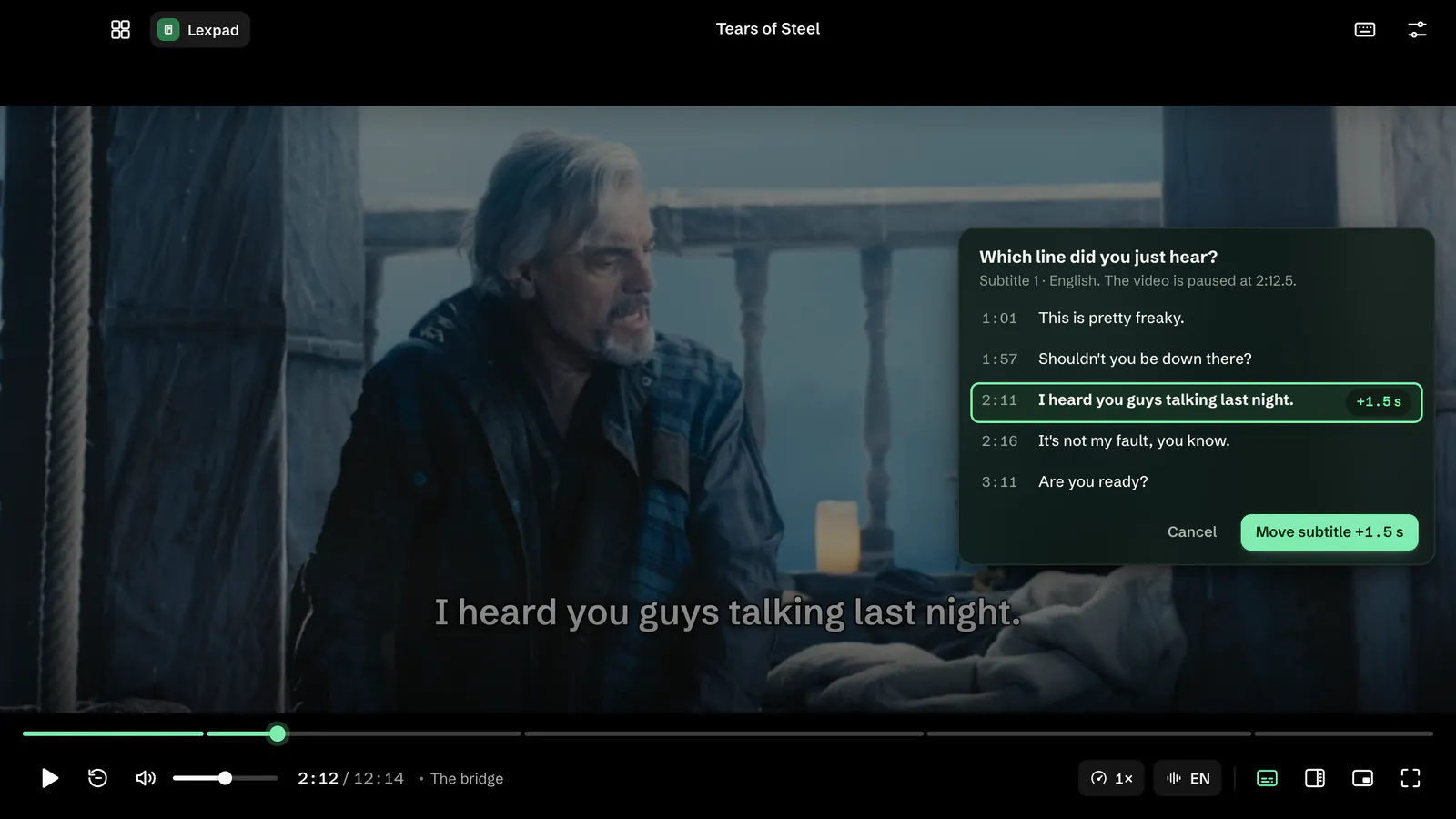
In Lexpad Player: press H right after you hear a line. The film pauses and shows the five lines around that moment; pick the one you just heard, and the subtitle moves by exactly the gap, for example “Move subtitle +1.5 s”. Z and X nudge it by 0.1 seconds, Shift Z and Shift X by half a second. Each subtitle has its own timing. Undo with ⌘ Z or Ctrl Z.
A transcript of every line
A film is also a text. Before a hard scene, reading its lines once means you hear words you would have missed. After it, searching for the word you did not catch tells you where else it came up.
A good player shows every line as a list beside the film, follows the film, jumps to a line when you click it, and lets you search.
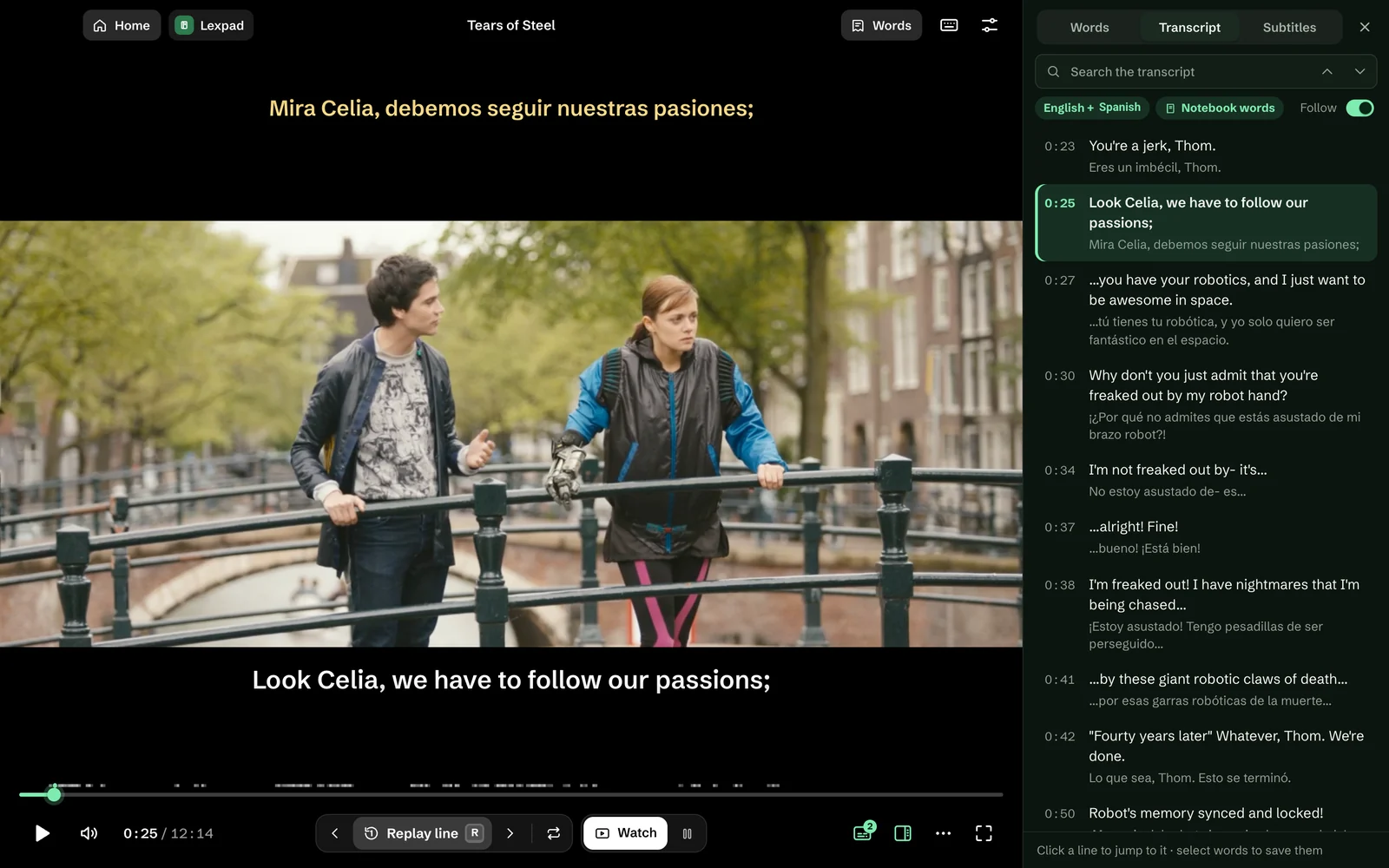
In Lexpad Player: T opens the transcript. Every line is there with its time and the current one highlighted; click a line to jump to it, and search with ⌘ F or Ctrl F. Your own language can show under each line, and you can select words there to save them.
Keep the word with its line, then review it
Watching alone teaches a few words an hour: one hour-long television programme taught real but small gains, more for words that came up several times (Peters and Webb, 2018). And the words you did notice are gone in a week unless something brings them back: repeated testing kept them, repeated studying did not (Karpicke and Roediger, 2008).
So a player that is serious about learning keeps a word with the line it was said in, and hands it to something that will test you on it later. Which words are worth keeping: sentence mining, step by step.
In Lexpad Player: click a word in any subtitle, or drag across a phrase (up to seven words). The film pauses and a card opens beside the line with the meaning, written by AI for this line, the line itself as the example, and a note such as “Seen in Tears of Steel · 0:25”. W picks a word with the keyboard. After the film the words you kept are listed, and Lexpad’s spaced repetition brings each one back.
It plays your files and finds the subtitles
None of this matters if the player refuses the file. Films on a computer come as MKV, MP4, AVI, MOV or WebM, with subtitles as SRT, VTT or ASS files beside them or as tracks inside. Then there are the quiet failures: a Persian or Arabic subtitle in an old encoding that shows as question marks, or a right-to-left line whose full stop ends up at the wrong end.
In Lexpad Player: open a film with ⌘ O or Ctrl O, or drop it on the window. A subtitle named like the film, such as film.en.srt beside film.mkv, loads on its own. Drop another SRT, VTT or ASS file on the playing film and a small card says which language it found, on your computer and without AI. Right-to-left lines keep their punctuation in place, and old Windows-1256 files are fixed as they load. Formats and codecs: what Lexpad Player plays.
All the keys on one card
Every key above, from the Player’s own keys sheet. ⇧ is Shift, ⌘ is Ctrl on Windows and ⌥ is Alt. Single-letter keys can be turned off in the Player’s Settings; keys with Shift, ⌘ or ⌥ always work. Press ? in the Player for the same list.

| What it does | MacKeys | Windows |
|---|---|---|
| Play | ||
| Play or pause | Space K | Space K |
| Back or forward 5 s (10 in Settings) | ← → | ← → |
| Back or forward 10 s | J L | J L |
| Slower or faster | [ ] | [ ] |
| Normal speed | \ | \ |
| Next or previous episode | ⇧N ⇧P | Shift N Shift P |
| Line by line | ||
| Previous or next line | ⇧← ⇧→ | Shift ← Shift → |
| Replay the line | R | R |
| Pause after each line | Q | Q |
| Play this line again and again | ⇧R | Shift R |
| This line once more, slowly | E | E |
| Type every line | ⇧T | Shift T |
| Type this line only | ⌥T | Alt T |
| Say every line back (Pro, Mac) | ⇧S | – |
| Say this line back only (Pro, Mac) | ⌥S | – |
| Subtitles | ||
| Hide or show all | C | C |
| Hide or show one | 1 2 3 | 1 2 3 |
| Subtitles panel | S | S |
| Timing −0.1 / +0.1 s | Z X | Z X |
| Timing −0.5 / +0.5 s | ⇧Z ⇧X | Shift Z Shift X |
| I just heard this line | H | H |
| Pick a word with the keyboard | W | W |
| Underline my words | U | U |
| Transcript | T | T |
| Search the transcript | ⌘F | Ctrl F |
| Window | ||
| Full screen | F | F F11 |
| Leave full screen, close a panel | Esc | Esc |
| Mini player | I | I |
| Volume, mute | ↑ ↓ M | ↑ ↓ M |
| Next audio track | A | A |
| Open a video | ⌘O | Ctrl O |
| Undo (timing, a dropped file) | ⌘Z | Ctrl Z |
| This list | ? | ? |
A routine for one episode, with these keys
One episode of 20 to 45 minutes, subtitles in the language you learn and in yours. The why of each step is in the routine for one episode; this is the key for each.
- Watch with both subtitles on, no stopping, for the story and the voices.
- Press 2 when a scene feels easy, and try it with their subtitle alone. Press it again when you are lost.
- Press Q before the one scene you could not follow, and say each line in the pause.
- Press R on a line you nearly caught, then E to hear it slowly once.
- Press ⇧ T (Shift+T) for two or three lines and type what you hear. Stop while it is still a game.
- Press ⇧ S (Shift+S) for one line you want to be able to say, and look at which word did not come through. With Pro, on a Mac.
- Click three to five words or phrases as they come, each with its line.
- Press T at the end and read the scene you struggled with as text.
- Tomorrow, before the next episode, practise yesterday’s words for five minutes. That is the step you never skip.
How to choose a player
The checklist as a table you can take to any player. Most players document their keys, so you can check the third column without installing anything.
| What it should do | Why | What to check in any player |
|---|---|---|
| Two subtitles at once | Dual subtitles helped learners pick up word meanings; same-language subtitles help listening most, so two is a stage | Can two subtitle files show at the same time, in different places? |
| One key per subtitle | So you can move between stages mid-scene | A key for each subtitle, and one for all |
| Replay the line | A line from its first word is a listening exercise with an answer | A key tied to the subtitle line, not a number of seconds |
| Slow one line | Slowing helps when the listener chooses the moment | One key for this line only; pitch kept; back to normal by itself |
| Pause after each line | Shadowing needs a gap after the line | An auto-pause switch and a loop for one line |
| Type what you hear | Dictation raised listening scores more than lessons alone | The line hidden, your words checked against it |
| Say it back | Shadowing for speaking needs feedback on each word | Shows which words were heard; says what happens to your voice |
| Timing per subtitle | Drifted subtitles break every exercise above | Timing per subtitle, in 0.1 s steps, with undo |
| A transcript | A scene as text can be read before and searched after | Every line, click to jump, search |
| Keep the word with its line | Testing is what keeps the few words watching teaches | A click on a word; the line kept with it; a review later |
Many general players do parts of this well. The mpv manual, for one, lists a key that shows a second subtitle and keys that move subtitle timing by 0.1 seconds (mpv manual, read 10 November 2026). Watching on YouTube or Netflix in a browser? Replay the line, Type what you hear and, with Pro in Chrome and Edge, Say it back are in the Lexpad language learning extension.
Lexpad Player is free, in Lexpad for Mac and Windows. Watching needs no account. Download for Mac · Download for Windows · everything Lexpad Player does
Sources, read on 10 November 2026
- Li, M. and Hennebry-Leung, M. (2022). Effects of monolingual and bilingual subtitles on L2 vocabulary acquisition. International Review of Applied Linguistics in Language Teaching, 62(2), 843–870. doi.org/10.1515/iral-2022-0034
- Lo, S. (2024). Vocabulary learning through viewing dual-subtitled videos: immediate repetition versus spaced repetition as an enhancement strategy. ReCALL, 36(2), 152–167. doi.org/10.1017/S0958344024000053
- Mitterer, H. and McQueen, J. M. (2009). Foreign subtitles help but native-language subtitles harm foreign speech perception. PLoS ONE, 4(11), e7785. doi.org/10.1371/journal.pone.0007785
- Zhao, Y. (1997). The effects of listeners’ control of speech rate on second language comprehension. Applied Linguistics, 18(1), 49–68. doi.org/10.1093/applin/18.1.49
- Hamada, Y. (2016). Shadowing: who benefits and how? Uncovering a booming EFL teaching technique for listening comprehension. Language Teaching Research, 20(1), 35–52. doi.org/10.1177/1362168815597504
- Hamada, Y. (2019). Shadowing: what is it? How to use it. Where will it go? RELC Journal, 50(3), 386–393. doi.org/10.1177/0033688218771380
- Kiany, G. R. and Shiramiry, E. (2002). The effect of frequent dictation on the listening comprehension ability of elementary EFL learners. TESL Canada Journal, 20(1), 57–63. doi.org/10.18806/tesl.v20i1.938
- Peters, E. and Webb, S. (2018). Incidental vocabulary acquisition through viewing L2 television and factors that affect learning. Studies in Second Language Acquisition, 40(3), 551–577. doi.org/10.1017/S0272263117000407
- Karpicke, J. D. and Roediger, H. L. (2008). The critical importance of retrieval for learning. Science, 319(5865), 966–968. doi.org/10.1126/science.1152408
- mpv manual, stable: keyboard control (“Toggle secondary subtitle visibility”; “Adjust subtitle delay by -/+ 0.1 seconds”). mpv.io/manual/stable/
- Film frames: Tears of Steel (CC) Blender Foundation | mango.blender.org, CC BY 3.0, with its official subtitles.
Good to know
Questions
What is the best video player for learning a language?
One that shows two subtitles at once, hides and shows each with one key, replays and slows a single line, pauses after each line, lets you type and say a line back, fixes timing per subtitle, and keeps the words you click for practice. Lexpad Player does all of these, free on Mac and Windows, with Say it back on a Mac on Pro. I make it, so judge it against the list above like any other.
Can I watch a movie with two subtitles at once?
Yes. In Lexpad Player, drop a second subtitle file on the film: the language you learn at the bottom, yours at the top. A third fits too.
How do I turn one subtitle off quickly?
Press 1, 2 or 3 for that subtitle. C hides them all. They come back where they were.
Are dual subtitles better than one?
For picking up the meaning of new words, two studies found an advantage for bilingual subtitles. For listening, subtitles in the language you learn do more. Start with both, then hide yours with one key as soon as you can follow.
Can I practise shadowing with movies?
Yes. Q pauses the film after each line so you can say it, Shift R loops a line, and E plays it slowly once. With Pro on a Mac, Say it back (⇧S, Shift+S) listens while you repeat the line and shows which words it heard.
Can I do dictation with a movie?
Yes, in Lexpad Player on Mac and Windows. Press ⇧T (Shift+T) and the film stops at each line with the line hidden; type what you heard and each word is checked as you finish it. ⌥T (Alt+T on Windows) does it for one line. It is free.
How do I fix subtitles that are early or late?
Press H right after a line and pick the line you just heard; the subtitle moves to match. Z and X move it by 0.1 seconds, Shift Z and Shift X by half a second. Each subtitle has its own timing.
Is Lexpad Player free?
Yes. Watching, subtitles, timing and the transcript need no account. A free Lexpad account is needed for meanings and for keeping words. Lexpad Player saves 5 words a day on Free, 200 on Pro. Say it back, on a Mac, is part of Pro and of the 7-day trial every new account gets.
Can I use this on YouTube or Netflix?
In the browser, the Lexpad extension puts the same line tools under the subtitle: Replay the line, Type what you hear and, with Pro in Chrome and Edge, Say it back. Lexpad Player is for the films on your computer.
Lexpad
Keep the words you meet.
Save the words you meet with their sentence; AI writes the card and spaced repetition brings each one back. Free to start, on the web, Android, iPhone, Mac and Windows.
Every new account gets Pro free for 7 days, no card needed.
Free account, no card. Apps: Mac · Windows · Android · iPhone
Free account, no card. macOS 11 or later · All downloads

Free account, no card. Or the direct installer

Free account, no card. Or the APK file

Free account, no card. The app for iPhone and iPad.
Free account, no card. The app for iPhone and iPad.
 Add to Chrome
Free account, no card. Apps: Mac · Windows · Android · iPhone
 Add to Edge
Free account, no card. Apps: Mac · Windows · Android · iPhone
 Add to Firefox
Free account, no card. Apps: Mac · Windows · Android · iPhone